Form Management – More Tools
Learn about the various building blocks for creating forms, such as Multiple Choice, Check Boxes, Dates, Signatures, Ranges, Cameras, and Ratings, and how to customize and edit them to suit your needs.
Creation of Forms is made up by dragging and dropping small ‘building blocks’ that perform different functions, onto the Form. Many are self explanatory but below are a complete list of these building blocks and how you can edit them to suit your needs.
Multiple Choice
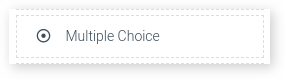
Giving your client a multiple choice gives you the chance to fill out a specific question and the client to respond a specific answer.
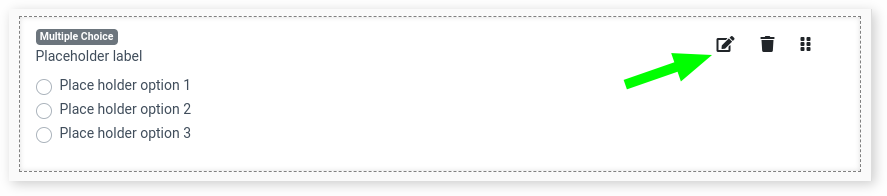
Press the Edit button to rename options
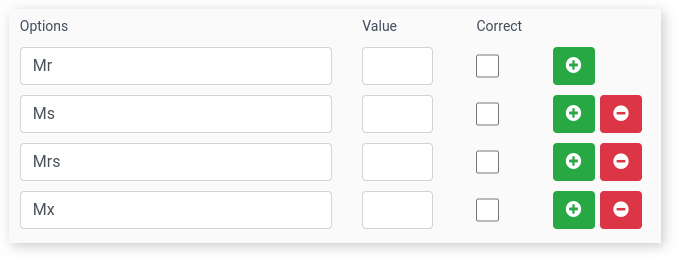
An example of what you can add is the client’s title.
Check Boxes
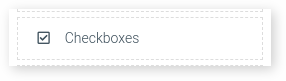
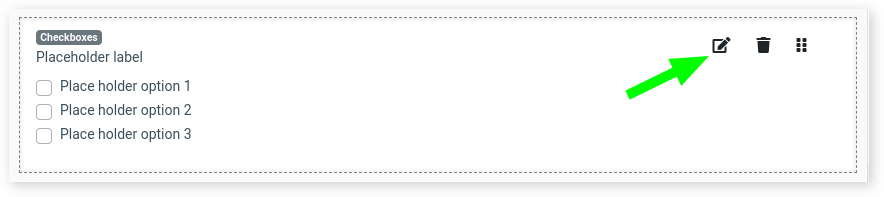
Adding in check boxes helps you ask your clients about specific topics or to fill specific options and to give multiple answers
To add in options press the Edit button
Enter in a Name for the options and also the different option the client can select, pressing the green plus (+) to add more options in or the red minus (-) to remove
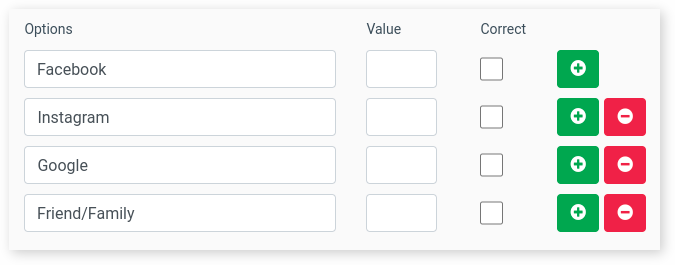
This can be set to ask various questions, eg:
How did you hear about us:

The clients health history:

Agreeing to Terms and Conditions

Optional: Add in as many fields as needed for different details
Dates
To record when the form was filled or other related information
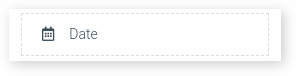
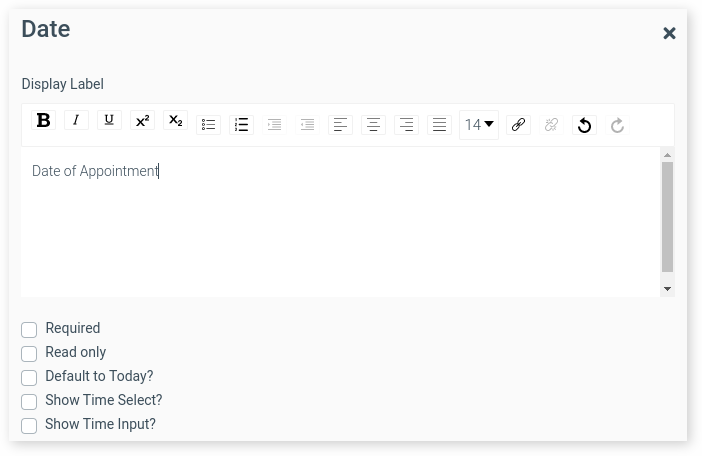
To edit the label press the Edit button

Enter in Name of the label
Signature
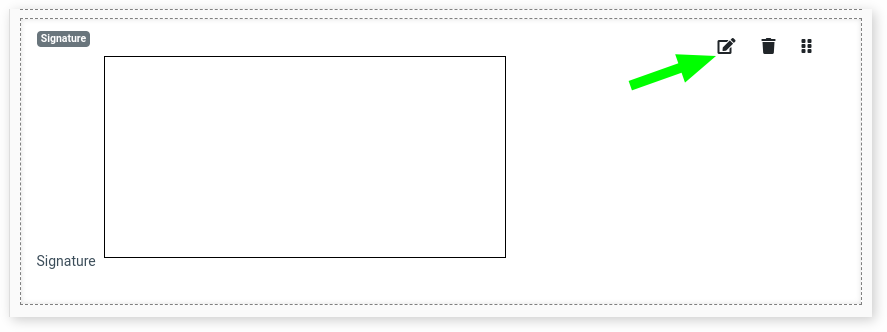
Adding a signature to your form is a great way to confirm and prove the client agrees to the form and to the appointment

To edit, Just press the Edit Button
Adding Fields to the Same Line
To help shorten and tidy up the form you may want to add them to the same line, to do this, use the Two Column Row tool
This will add the field to the form which you can move other fields into.

Optional: You can do the same with the Three Column Row tool and the Four Column Row tool
Range
Useful for not only reviews but also the client shares about sliding scale of various details
Add the name by pressing the Edit button

Enter the Name of the Range

Enter in the Names on the two ends of the Range

Camera
Allowing the client to add a picture can help show an existing service they have or to have details for a specific service
Add a description by pressing Edit
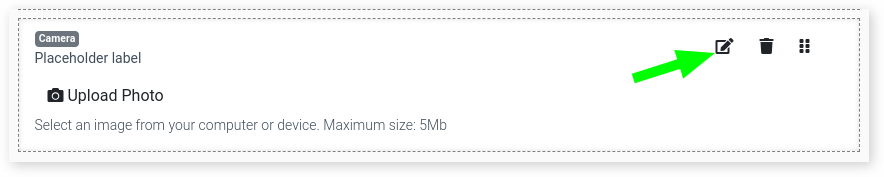
Enter a Name for the tool

Rating
Ratings are useful tool when creating review and feedback forms
Edit by pressing the Edit button.

Add in a Name of the Rating
