On this page
article
How to Copy a Class on the Calendar
Learn how to easily copy a class on the calendar, including options to copy with or without current attendees, and how to place the appointment in a specific spot on the calendar.
After you create a Class on the Calendar you may like to create a copy of it for quick creation of multiple weeks of classes.
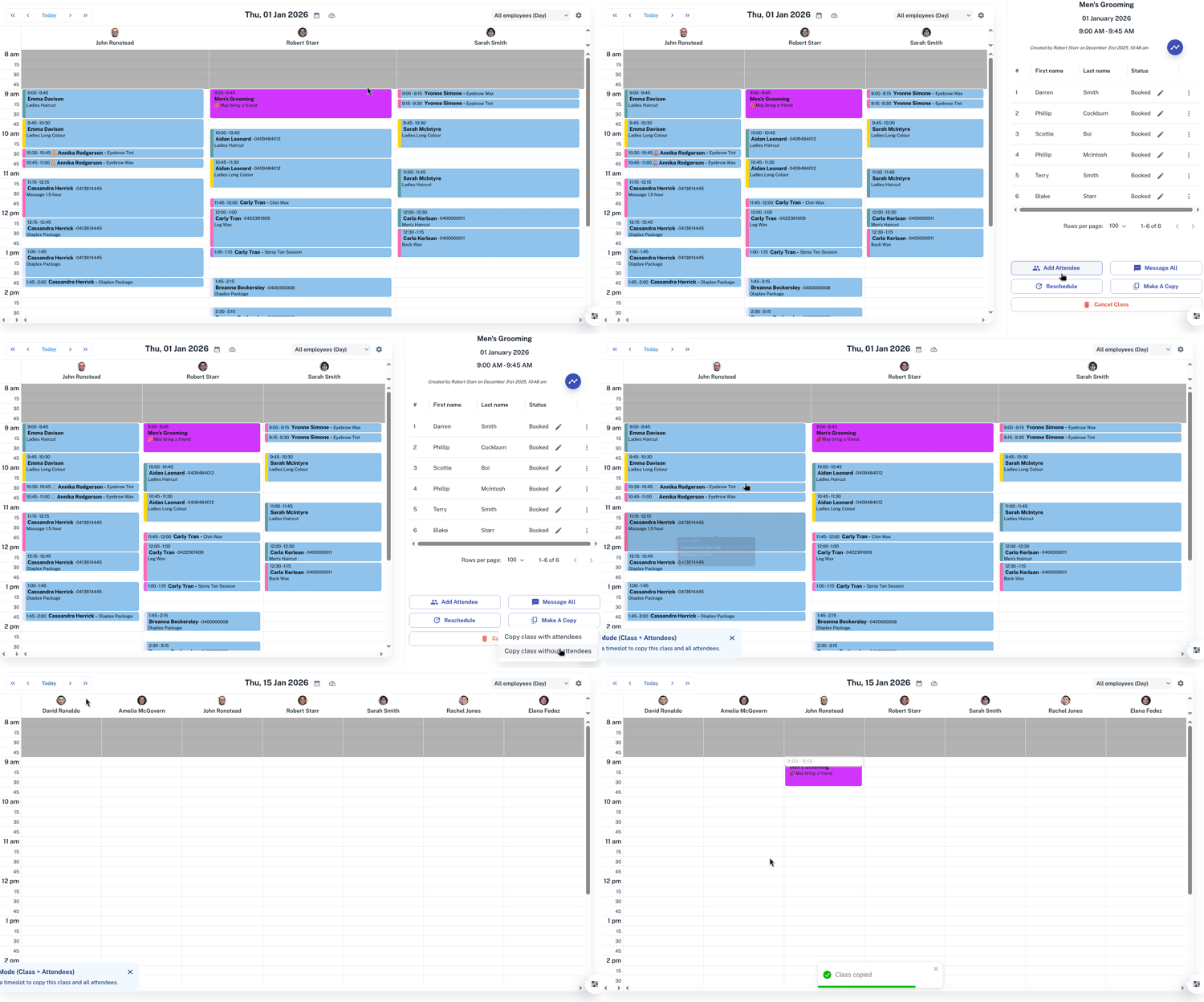
To copy a Class:
- Select the Class on the Calendar
- Press Make a Copy
- You now have the option to copy the Class with or without current attendees
- Optional: Copying a Class with attendees will carry over any current clients currently booked with the Class
- Click a place on the Calendar you would like to place the appointment
- Optional: Press the arrows at the top of the Calendar to move ahead days or weeks.
For further information on classes, Click Here.
Was this page helpful?
What did you like?
What went wrong?