Bulk Price Update
Learn how to update the prices of multiple services at once using the Bulk Price Update tool, including percentage and fixed amount adjustments, rounding options, and tier pricing support.
The Bulk Price Update tool lets you update the prices of multiple services at once — without having to edit each service individually. You can apply a percentage or fixed dollar adjustment across an entire service category, fine-tune individual prices in the table, and save everything in one go.
Note: Prices are updated per location. The tool only edits prices for the location you are currently signed in to. To update prices for a different location, switch to that location first using the location selector in the top right corner.
How to Open Bulk Price Update
- Go to the Services menu
- In the Advanced Tools panel on the left side, click Bulk Price Update
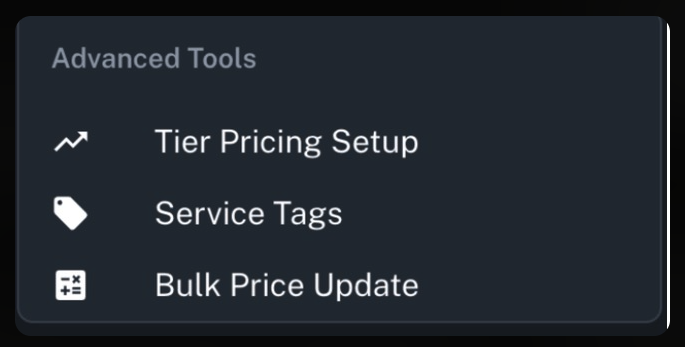
The Bulk Price Update dialog will open, showing the current location name in the title.
Updating Service Prices
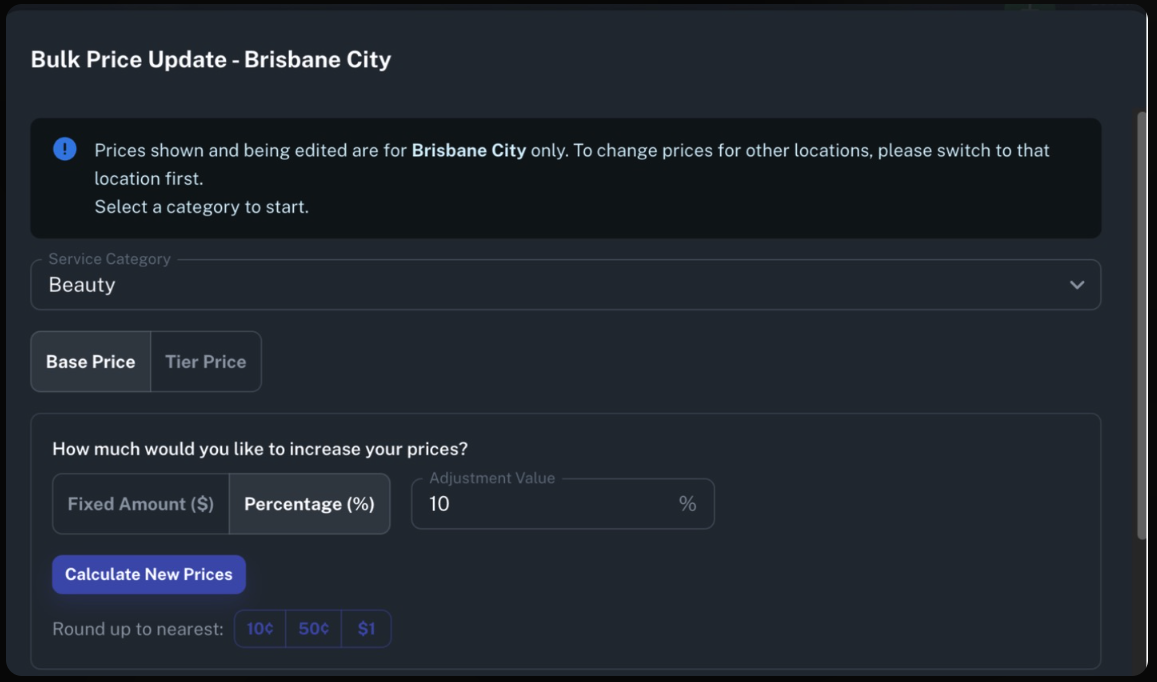
Follow these steps to update your prices:
1. Select a Service Category
Use the Service Category dropdown to choose the category of services you want to update. Only categories that have at least one active service available at your current location will appear in the list.
2. Choose Base Price or Tier Price
Use the Base Price / Tier Price toggle to select which price type you want to update:
- Base Price — the standard price set for the service at this location
- Tier Price — a pricing level set up under Tier Pricing Setup. If you select this option, an additional Select Tier dropdown will appear — choose the tier you want to update.
3. Set Your Adjustment
In the adjustment panel, choose how you want to change your prices:
- Percentage (%) — increases (or decreases, if negative) all prices by a percentage. For example, entering
10raises all prices by 10%. - Fixed Amount ($) — adds (or subtracts) a flat dollar amount to all prices.
Enter your value in the Adjustment Value field, then click Calculate New Prices. The services table will populate with the calculated new prices.
4. Review and Fine-Tune
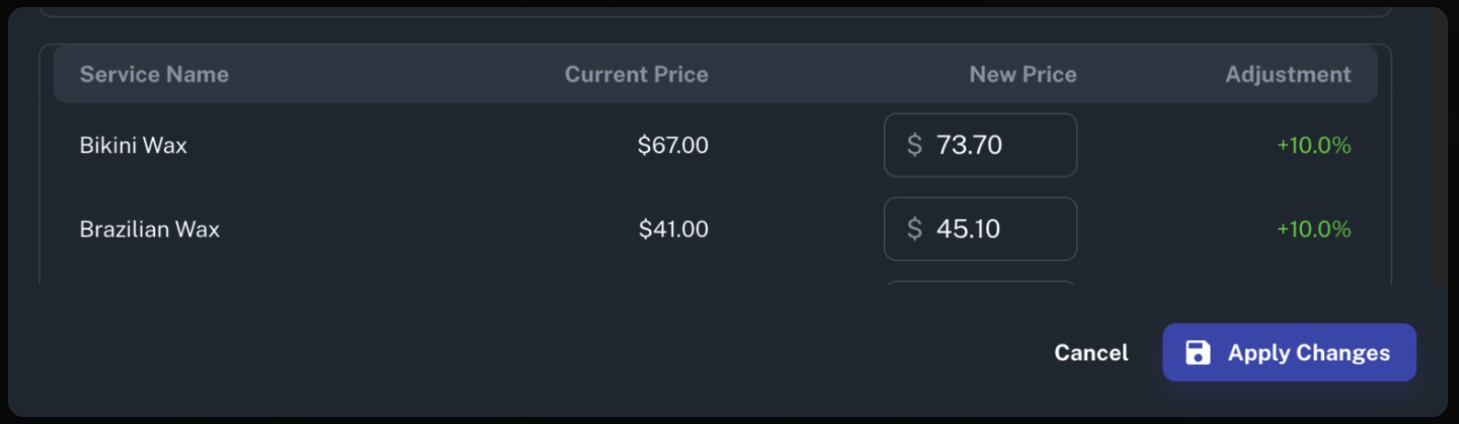
The table shows each service with its Current Price, the calculated New Price, and the Adjustment percentage. You can manually edit any New Price field in the table if you want to override a specific value.
Round up shortcuts are also available after calculating prices. Click 10¢, 50¢, or $1 to round all new prices up to the nearest amount — useful for keeping prices ending in clean numbers.
5. Apply Changes
When you are happy with the new prices, click Apply Changes. All prices in the table will be saved at once. A success message will confirm the update.
To discard your changes without saving, click Cancel.
Tips
- You can enter a negative adjustment value to decrease prices (e.g.
-5for a 5% reduction). - The Adjustment column shows the percentage change in green (increase) or red (decrease), giving you a quick visual check before saving.
- To update prices across multiple categories, complete the update for one category, then reopen the tool and select the next category.
- To update prices for another location, close the tool, switch locations from the top-right location selector, then reopen the tool.
What did you like?
What went wrong?