How to Apply Custom Fields to Employee's Profile
Custom Fields enables you to assign more specific information to your employee’s profile.
You want to add custom information to your employee’s details. By default, we have name, address, phone, email and more. However, what if you want fields like Emergency Contact or perhaps record that basic training has been completed or certifications obtained? If you’re a mechanic you may want to show certifications completed. A pet grooming salon may want to show their staff’s training levels, etc.
How to Find Custom Fields
To do this:
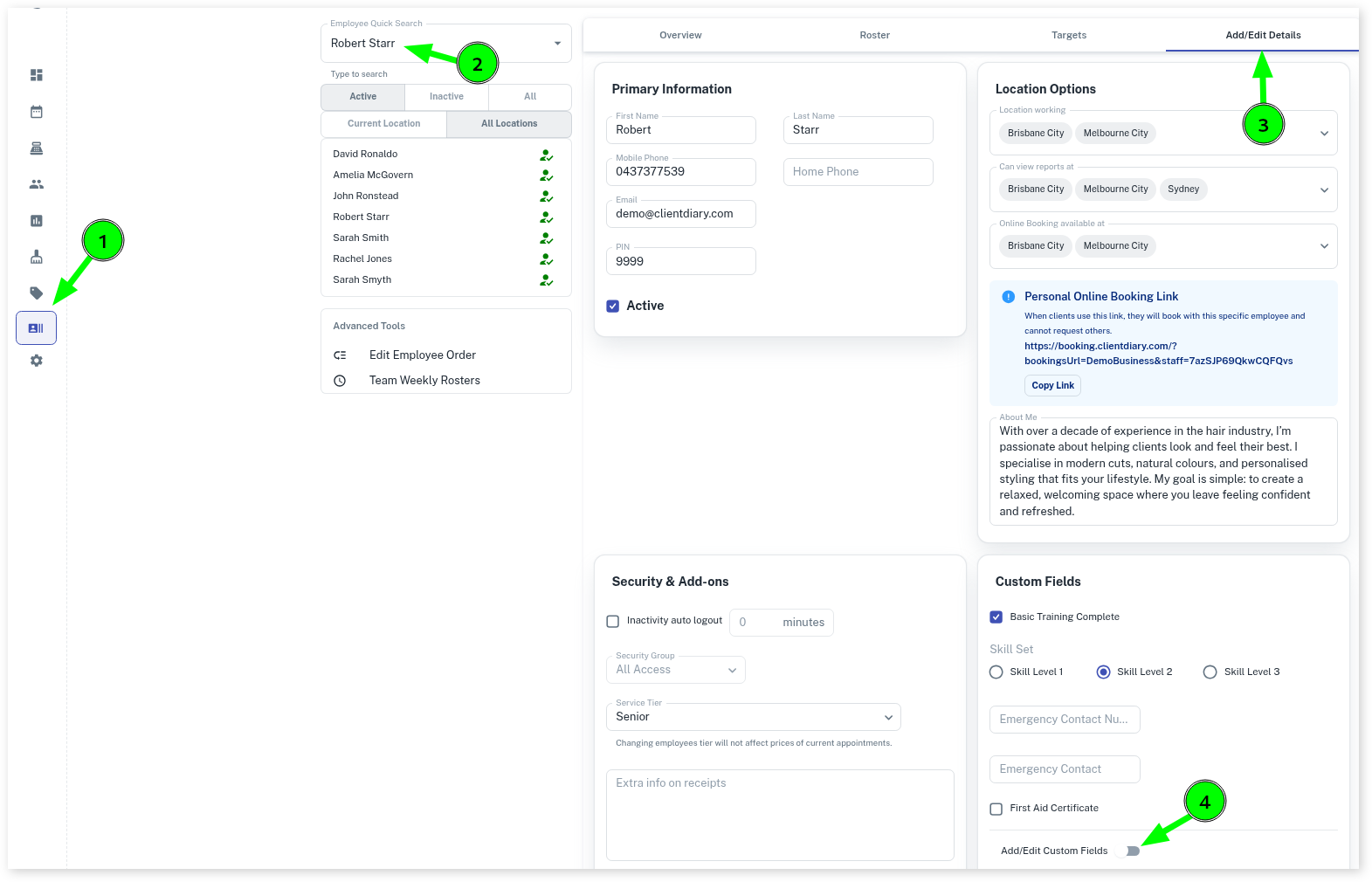
- Go to the Employees menu
- Search for the Employee in the Employee Quick Search
- Press on Add/Edit Details
- Click on the slider next to Add/Edit Custom Fields to access fields options
- Turning this on you will see three different selection options
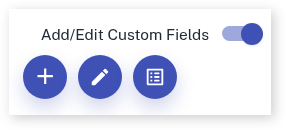
Add Custom Fields
When clicking on the plus symobol (+) there are different types of fields you can add.
When pressing on to the field it will prompt you to enter a name for the field in question.
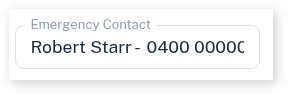
Text Field- Is just when you want to add notes to that field
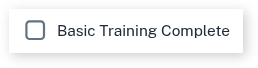
Check Box - When you want to add a tick box next to that field
Radio Button - When you want to add multiple options to that field

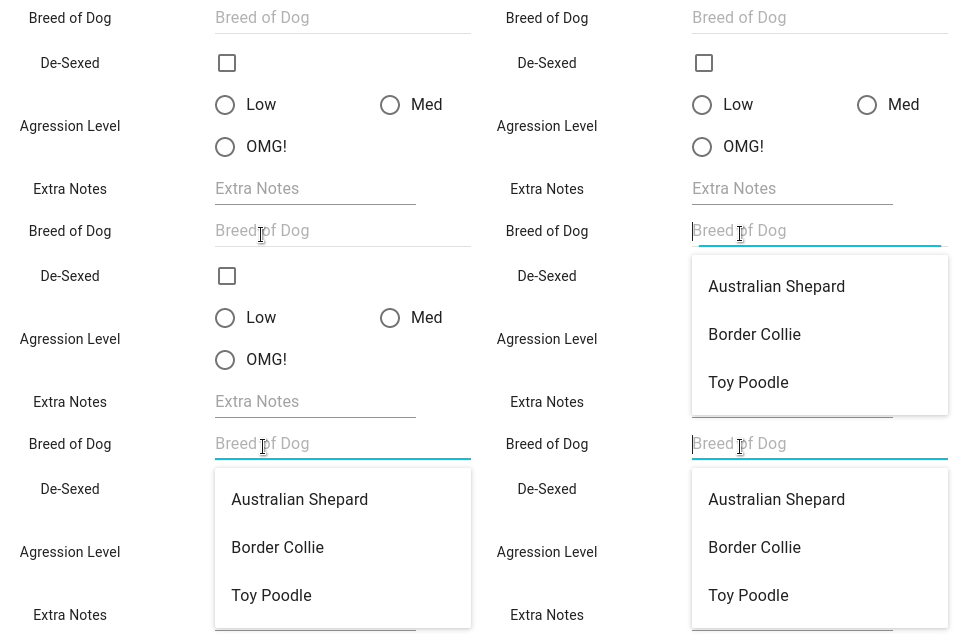
Auto-Complete Field - An auto complete field remembers what you enter so it’s there next time
Rename Custom Fields
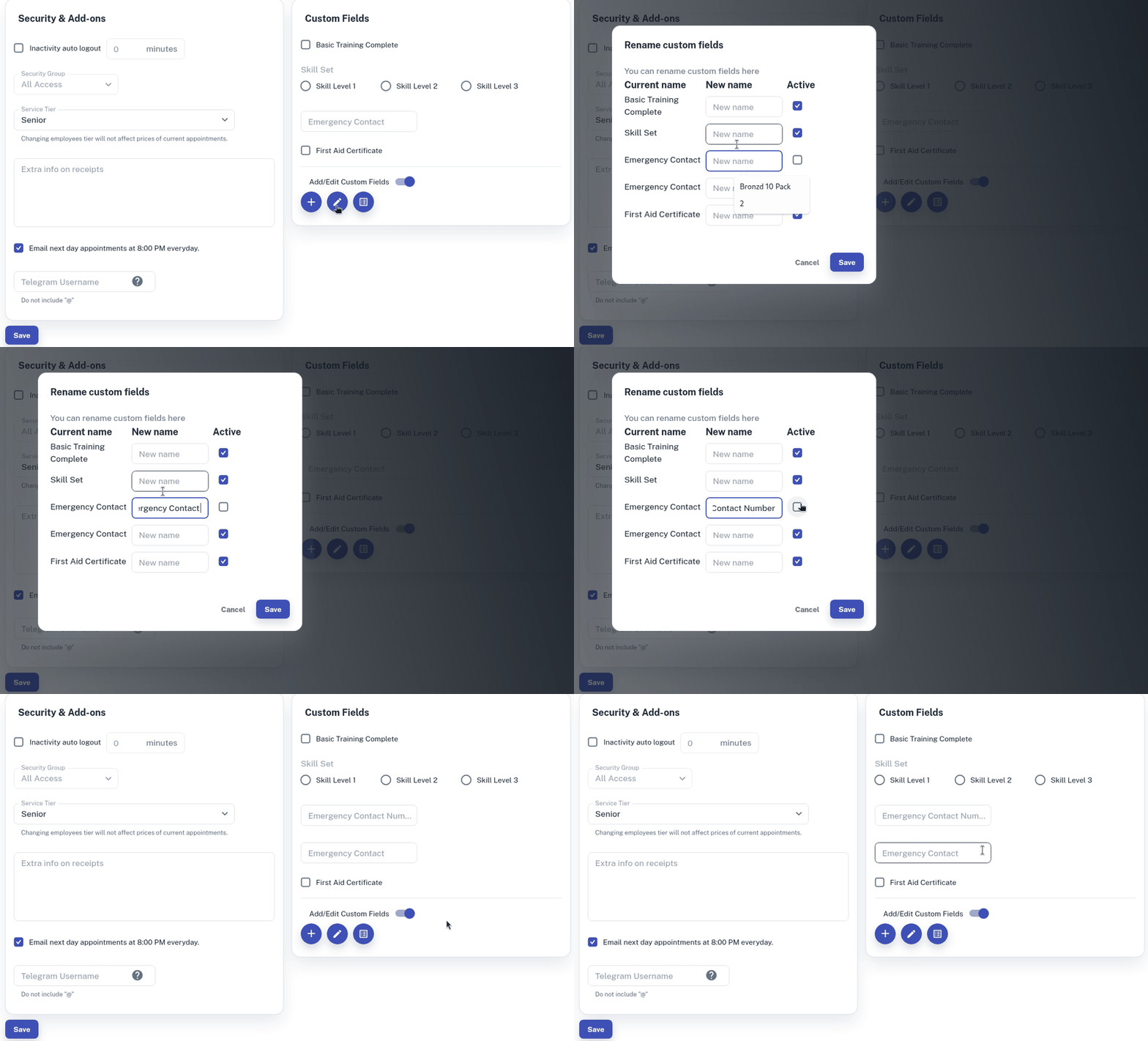
Clicking on the edit (pencil icon) you can rename your custom fields and can make fields active or inactive.
Reorder Custom Fields
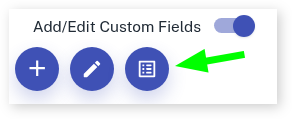
Clicking on this system enables you to reorder your custom fields
From the pop-up you can click, drag and drop the custom fields to the desired order.
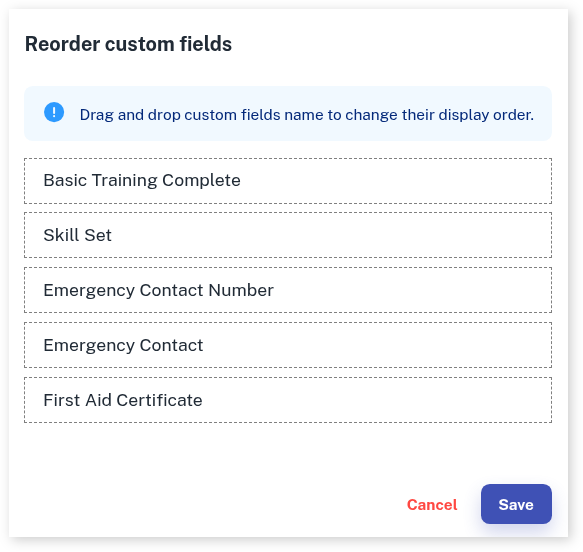
Once you have done the changes you would like click on the Save button.
What did you like?
What went wrong?