Daily visible Start and End time of Calendar
Choose how the daily Calendar time range is displayed using Dynamic Hours based on your opening hours, or Fixed Hours with a start and end time you set manually.
Client Diary now lets you choose how the start and finish times behave on your daily Calendar view. This gives you more control over how much of each day is visible, so the Calendar can better suit the way your business works.
Previously, the visible time range on the Calendar did not suit every business. You can now leave it on the default Dynamic Hours setting, or switch to Fixed Hours and set the range yourself.
Navigate to the settings
- Open the My Account menu
- Select the Settings tab
Update the settings
- Find the Calendar start/end time
- Choose Dynamic Hours or Fixed Hours
- Press the Save button to apply your changes
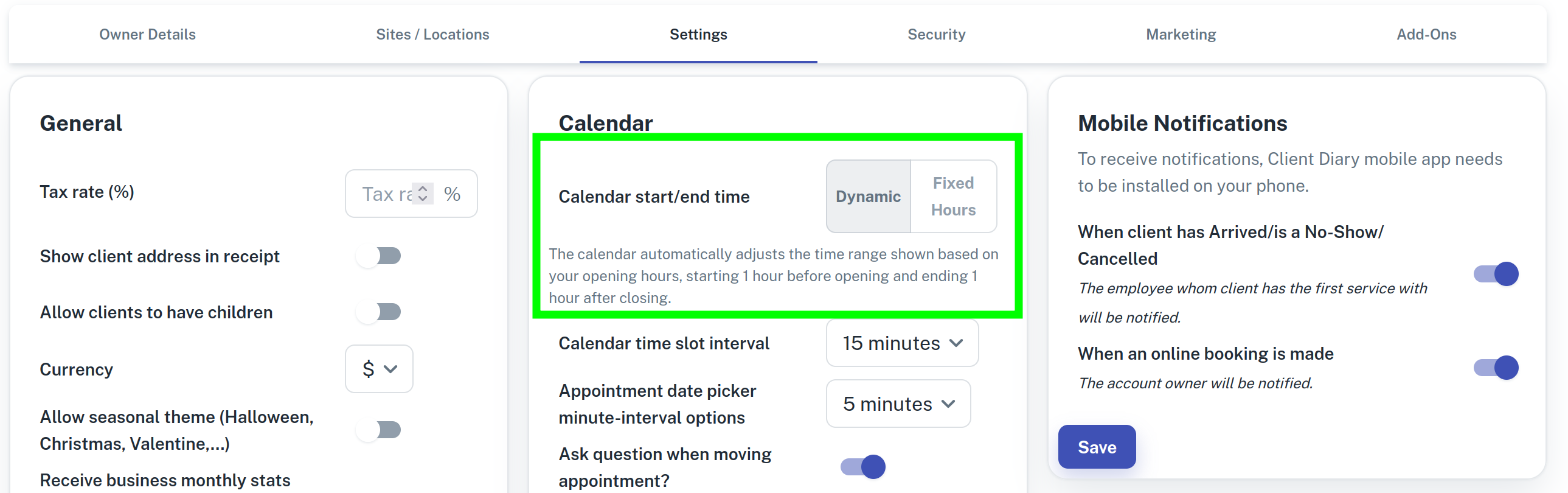
Dynamic Hours
Dynamic Hours is the default option.
When this is selected, the Calendar automatically adjusts the time range shown based on your opening hours, starting 1 hour before opening and ending 1 hour after closing.
As shown in the setting note:
The calendar automatically adjusts the time range shown based on your opening hours, starting 1 hour before opening and ending 1 hour after closing.
This works well for most businesses, because the Calendar expands and contracts each day to match when you are open.
Fixed Hours
If you want the Calendar to always show the same start and finish times each day, select Fixed Hours.
The setting will expand so you can choose the start time and finish time you want the Calendar to display.
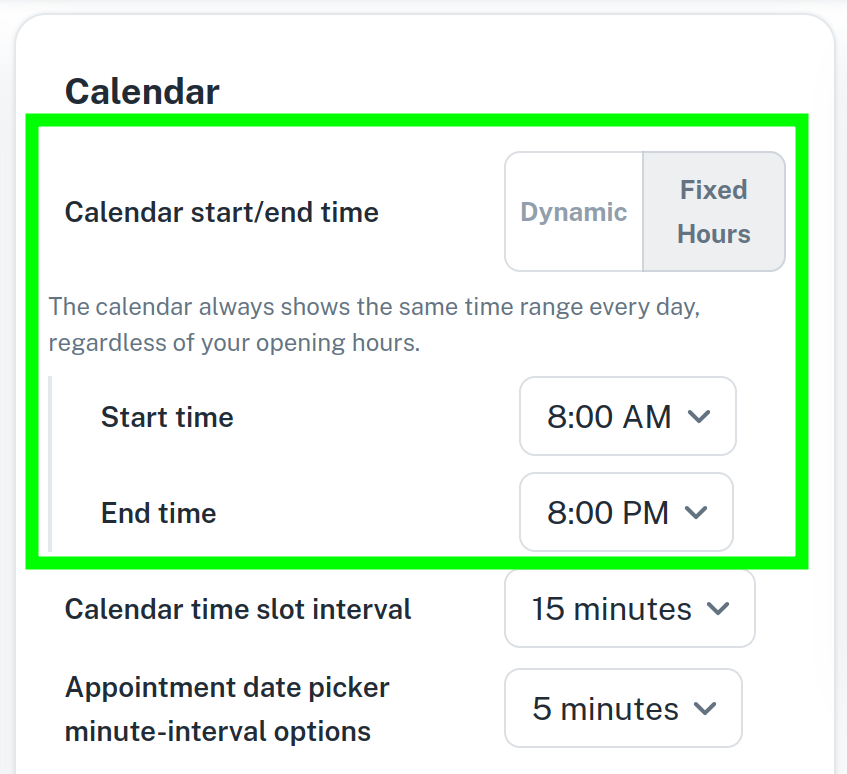
After making your selection, press the Save button at the bottom of the screen.
Related Calendar Settings
- How to Set Your Opening Hours — used by Dynamic Hours to calculate the visible time range
- How to Set Your Calendar View to 24 Hour Mode — shows the full 24-hour day on the Calendar, separate from this setting
What did you like?
What went wrong?