On this page
article
How to Add Custom Terms and Conditions to Your Online Booking
Learn how to easily add custom terms and conditions to your online booking system by following these simple steps in your account settings.
Classic Online Booking: This page covers the Classic Online Booking system. For all new setups, we recommend following the current Online Booking Overview and How to Set Up Online Booking.
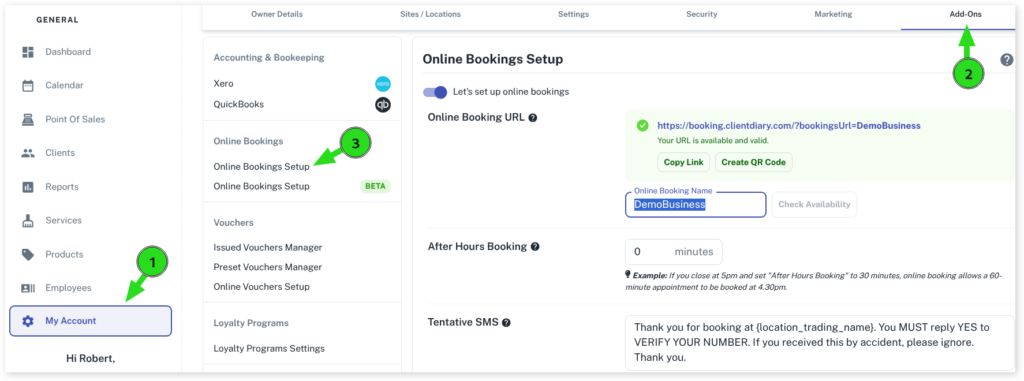
Go to:
- Select the My Accountmenu
- Click on the Add-Ons tab
- Press on the Online Bookingsoption
- Scroll down to the Term & Conditionsheading
- Type or paste your custom conditions in the blank bar on the right
- Click on the Save button to apply changes
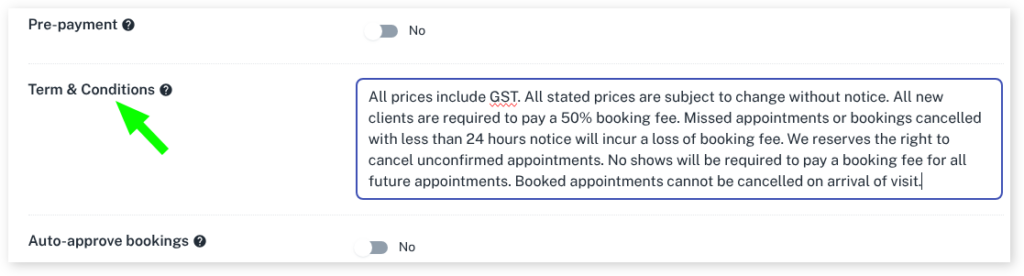
The Terms & Conditions can be viewed by your clients at the Booking Summary when booking an appointment online.
For more info on Online Booking please read our Online Booking Overview.
Was this page helpful?
What did you like?
What went wrong?