How To Update Your Credit Card
Learn how to quickly update or add a new credit card in Client Diary by accessing the Owner Details tab in the My Account menu and following the simple steps provided.
You may need to update your credit card for many different reasons: you have may lost it, it has expired or it went through a cycle in the dryer and no longer works. Updating or adding a new credit card into Client Diary is a quick process.
This is how:
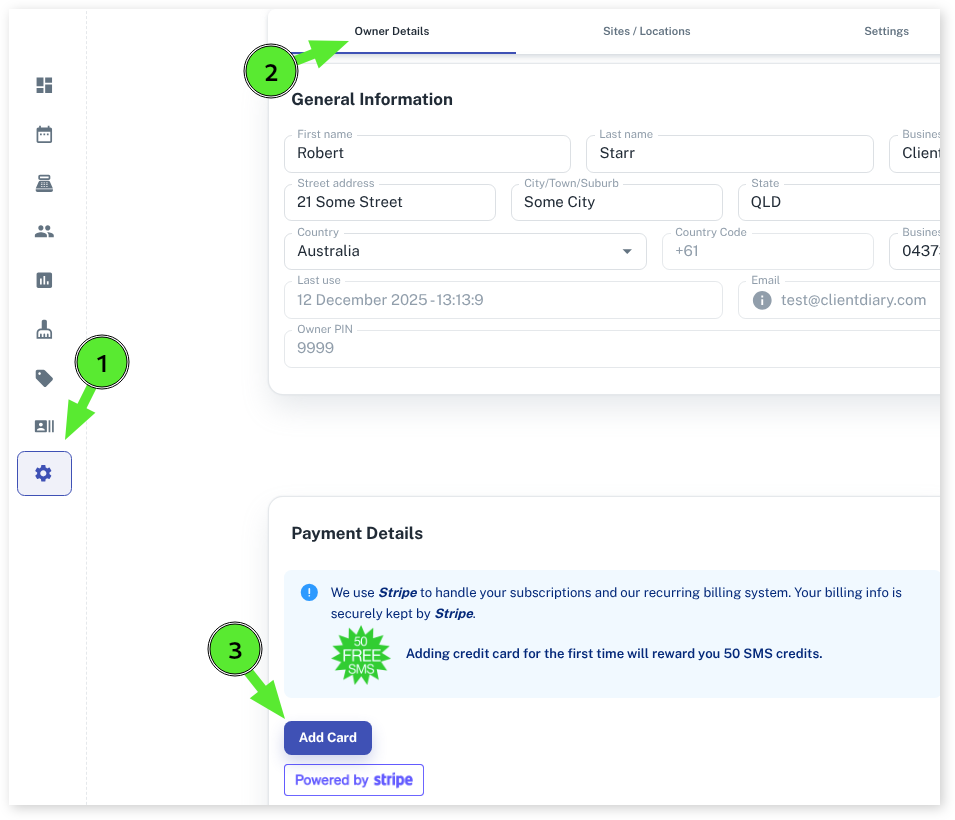
- Select the My Account menu
- Press the Owner Details tab
- Scroll down to the bottom of the screen to the Payment Details area
- Click on the Add Card button
- Enter your credit card details
- Click the Add Card button
Client Diary only keeps one payment method on file. So when you add a new credit card, it replaces the old with the new.
As a mention, updating your credit card can only be done on the web browser version of Client Diary.
Please ensure you’re using Google Chrome when using Client Diary. Although Client Diary will work on other browsers quite well (say Firefox), it will definitely have troubles on other browsers such as Safari, Internet Explorer and others.
We design it to work on Google Chrome as we can focus on this one browser and ensure it’s as solid an experience as possible.
Once you have installed Chrome, please use the following link to login: https://app.clientdiary.com/login
What did you like?
What went wrong?