Booking a Service Bundle
Learn how to efficiently book clients for multiple services using Bundles, with step-by-step instructions provided in this document.
Bundles are an amazing way to book a client for multiple services at the same time.
If you haven’t set up Bundles yet; please have a look at This Page.
After being set up, it’s as easy as booking an appointment and client will have multiple Services booked on the Calender.
For a full description of Service Bundles please follow this link to the Service Bundle Overview.
This is how:
- Select the Calendar menu
- Click on a Time Slot to make an appointment
- Choose the New Appointment button
- Enter the Client Details
- Below the Service selection area you will find the Service Bundles area
- Choose the Bundle you would like to book.

- You will now see the individual Services that make up the Bundle appear in the top right of the New Appointment area.
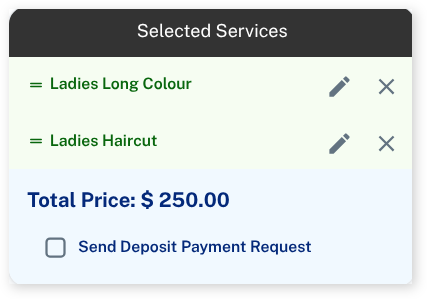
-
Select the Submit button like normal to book the Bundled services
-
The booking is in the Calendar and can be moved about and adjusted if needed.
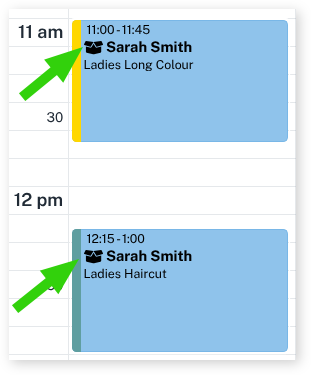
TIP: Looking closely you will see a small, opened box icon in the booking.
This indicates the booking is part of a Bundle and therefore might have adjusted timing and pricing compared to a normal booking.
Hovering your mouse over the booking will show a tip to let you know which Bundle the booking is part of.
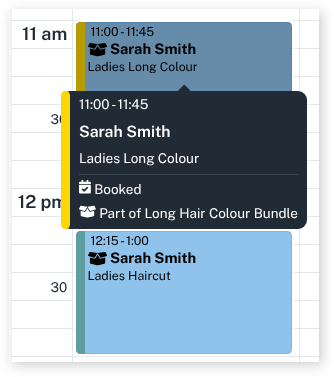
For more info on Service Bundles be sure to read the Service Bundle Overview.
What did you like?
What went wrong?