On this page
article
Blocking Out Time and Holidays
Learn how to effectively block out time for appointments, holidays, and other events by following simple steps and options provided, including allowing clients to book over the block out if needed.
Block out appointments are very versatile. You can use them to block out a quick meeting, a doctor’s appointment, leaving work early, a holiday and more.
Blocking Out Time in a Day
- Click and drag with your mouse from the start time until the end time of your block out
- When prompted, choose Block Out Time
- Optional: Select a Reason
- Optional: Enter a Note
- Press the Submit button and you now have time blocked out
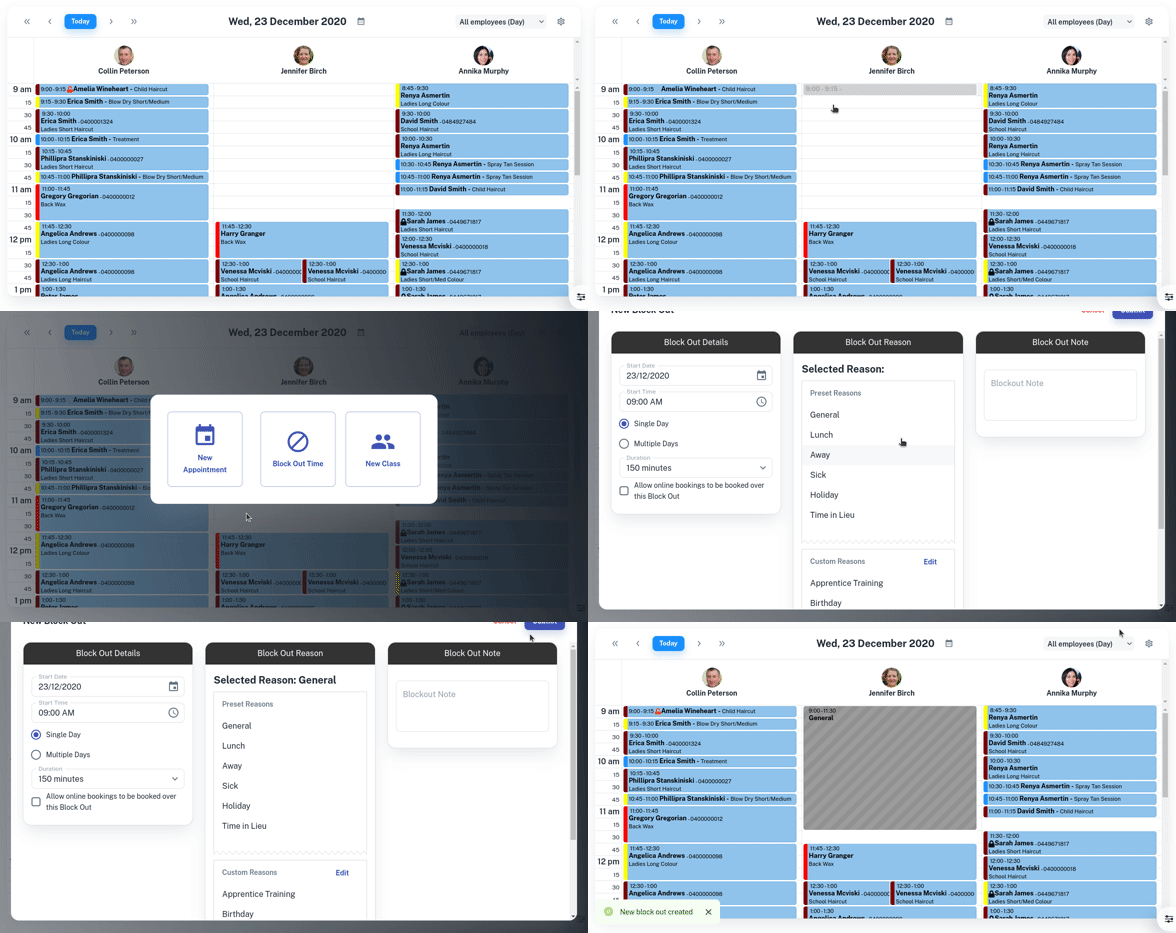
- Optional: When selecting the time you can select from the Duration drop down of a preset about of time.

Blocking Out Holidays / Multiple Days
- Assuming booking a holiday, move to the start date of the holiday in the calendar.
- Click on the start time of the holiday in the calendar.
- Select the Block Out Timebutton
- Press the Multiple Days option on the left
- Enter the End Date to choose the last day of the block out
- Change the End Time to choose what time the last day of the block out finishes
- Under the Block Out Reasonselect the reason relating to what type of block out it is
- Click on the Submitbutton to add the block out

Allowing Clients to Book Over a Block Out
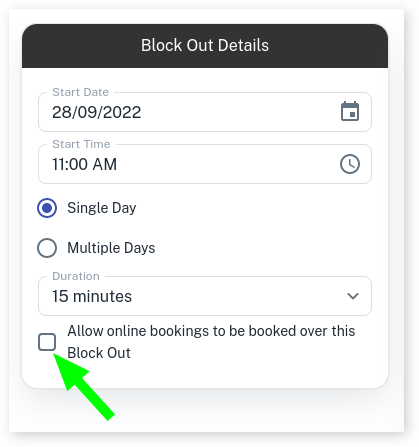
When creating a Block Out you may be using it as a reminder or as a temporary space that clients will still be able to book.
- Head to the Calendar
- Start to create the Block Out as Instructed Above
- Tick the option to Allow online bookings to be booked over this Block Out
- Complete Block Out