On this page
article
How To Add and Edit Block Out Notes
Learn how to add and edit block out notes in Client Diary to provide specific details for blocked-out time slots, including creating notes and editing them directly on the calendar.
Client Diary allows you to add custom notes to any block out appointment so you can be more specific about why you’re blocking out that time slot.
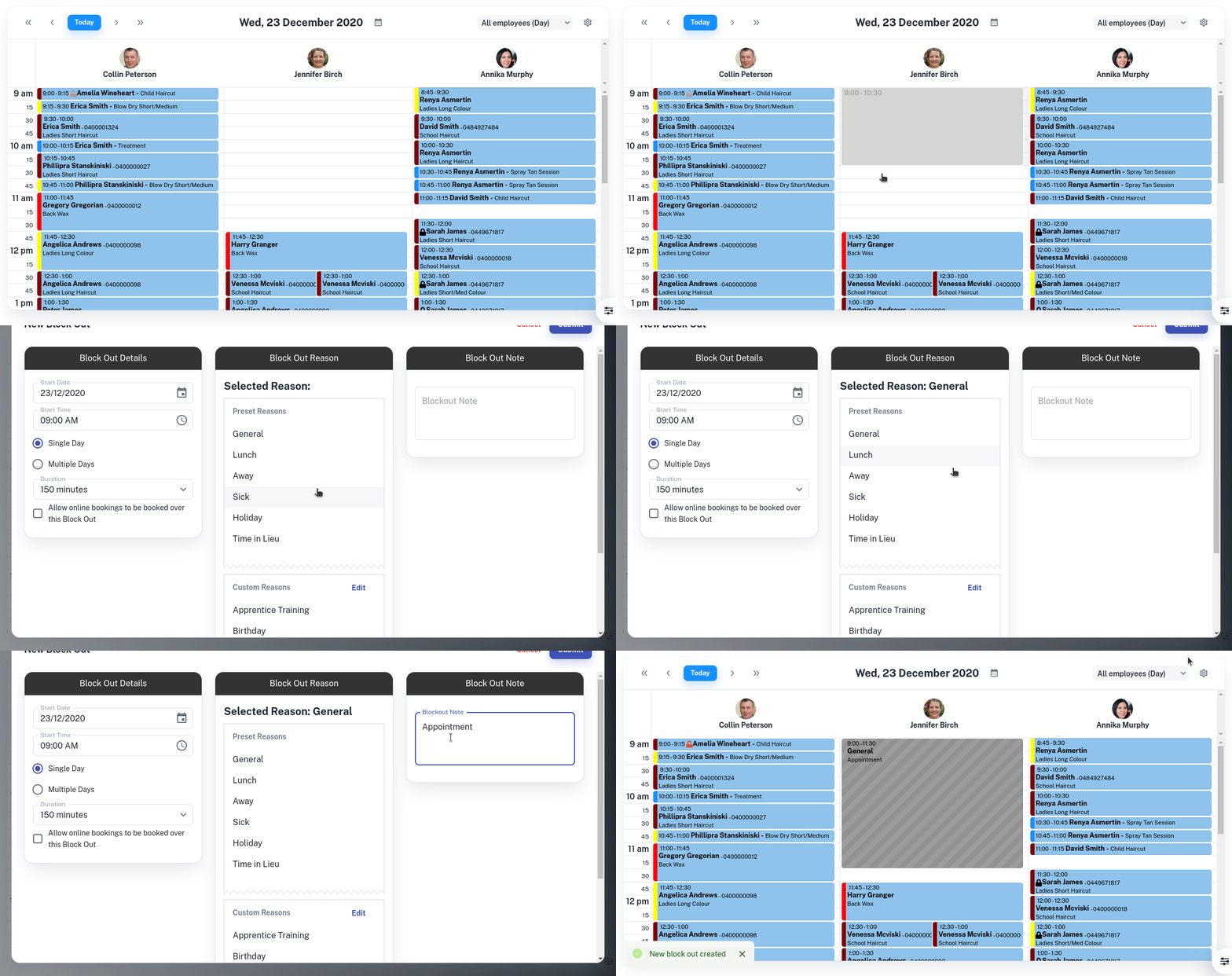
Creating a Block Out Note
- In the Block Out Time screen,select a Reason for the block out
- Click below the Block Out Noteheading
- Type the Note you would like to add
- Click on the Submitbutton
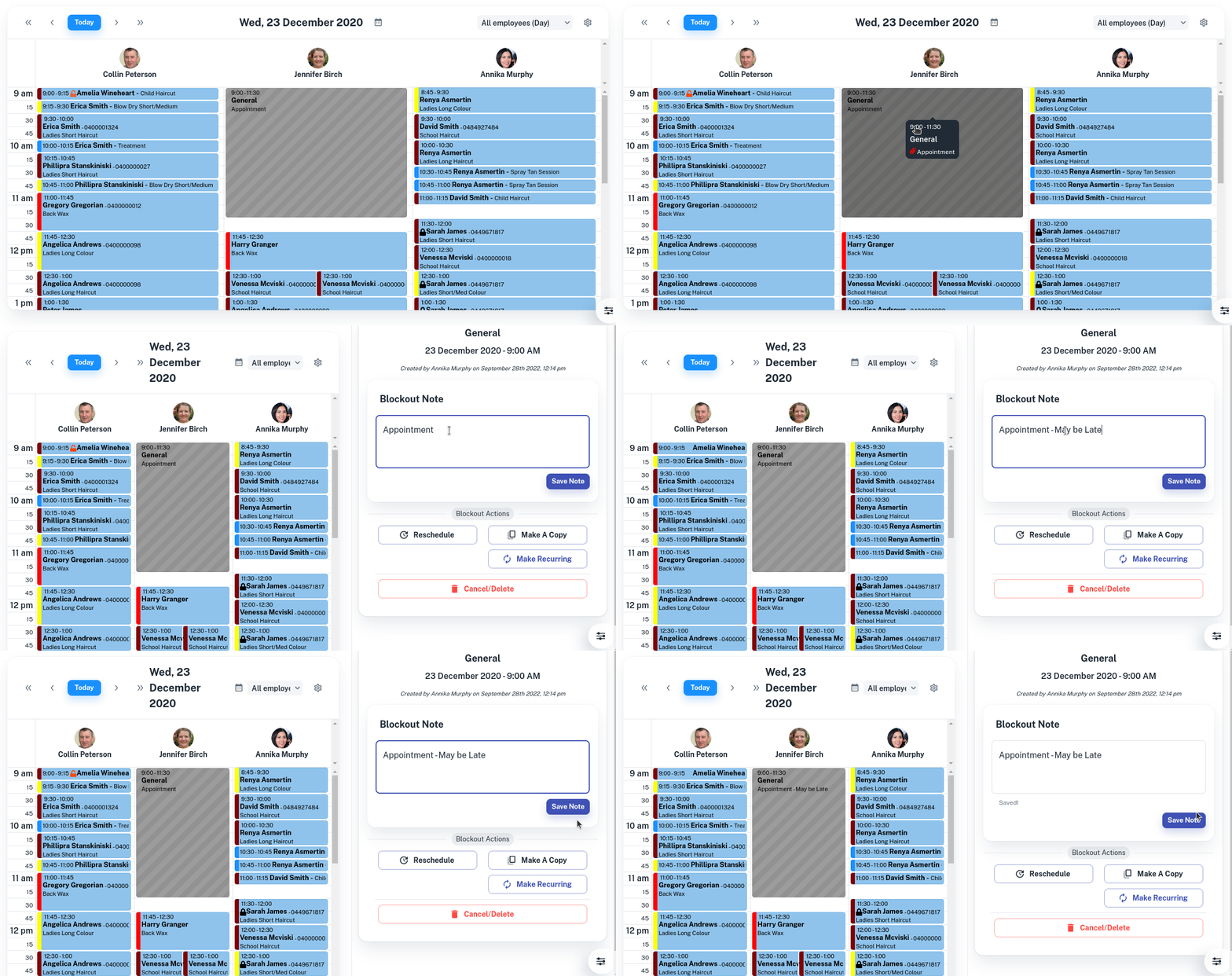
Editing Your Block Out Notes
- Select the block out on your Calendar
- Under Block Out Note input change / edit your note
- Press the Save button to apply changes