On this page
article
How to Copy a Class on the Calendar
Learn how to easily copy a class on the calendar, including options to copy with or without current attendees, and how to place the appointment in a specific spot on the calendar.
After you create a Class on the Calendar you may like to create a copy of it for quick creation of multiple weeks of classes.
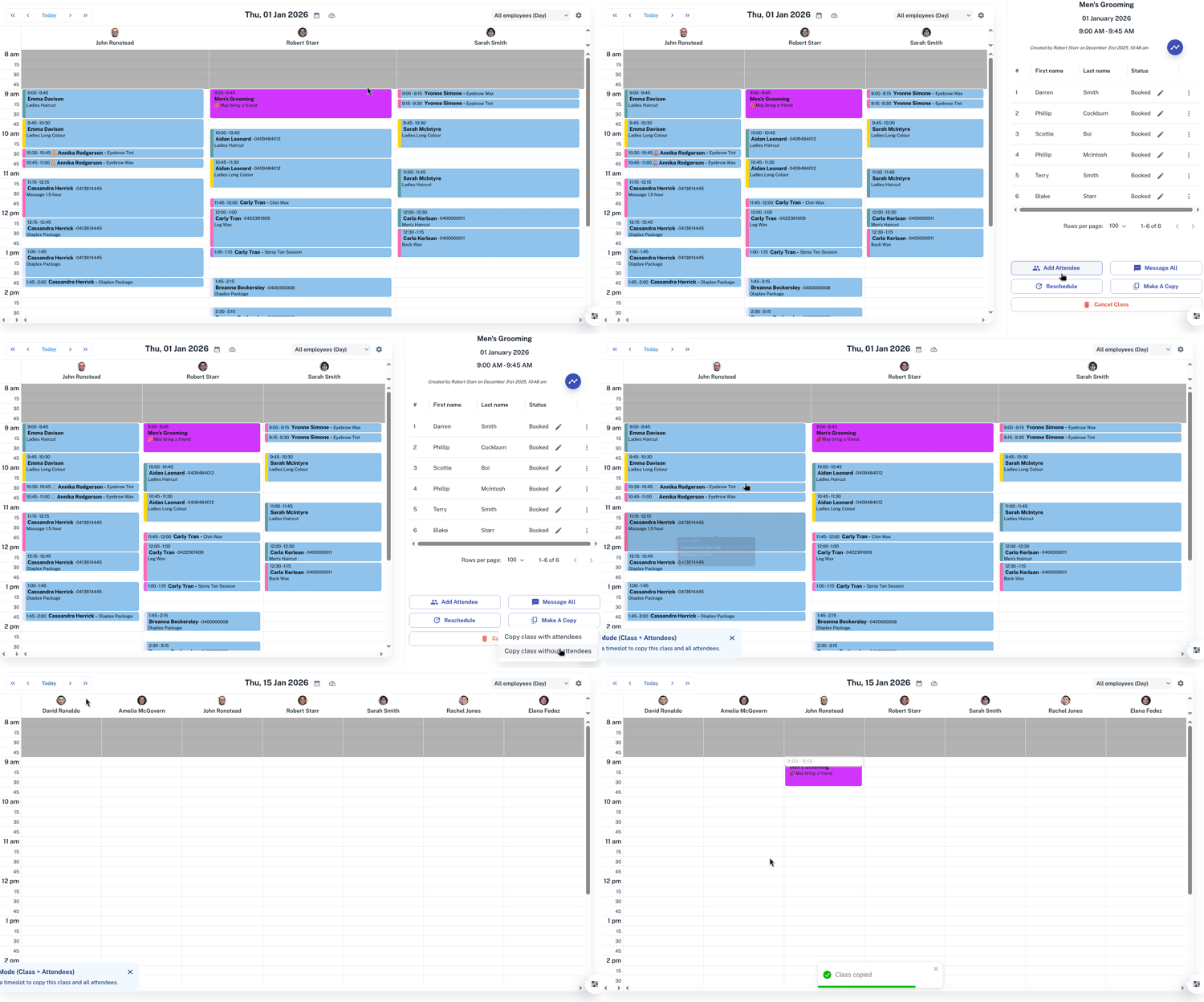
To copy a Class:
- Select the Class on the Calendar
- Press Make a Copy
- You now have the option to copy the Class with or without current attendees
- Optional: Copying a Class with attendees will carry over any current clients currently booked with the Class
- Click a place on the Calendar you would like to place the appointment
- Optional: Press the arrows at the top of the Calendar to move ahead days or weeks.
For further information on classes, Click Here.