On this page
article
How to do a Group Checkout
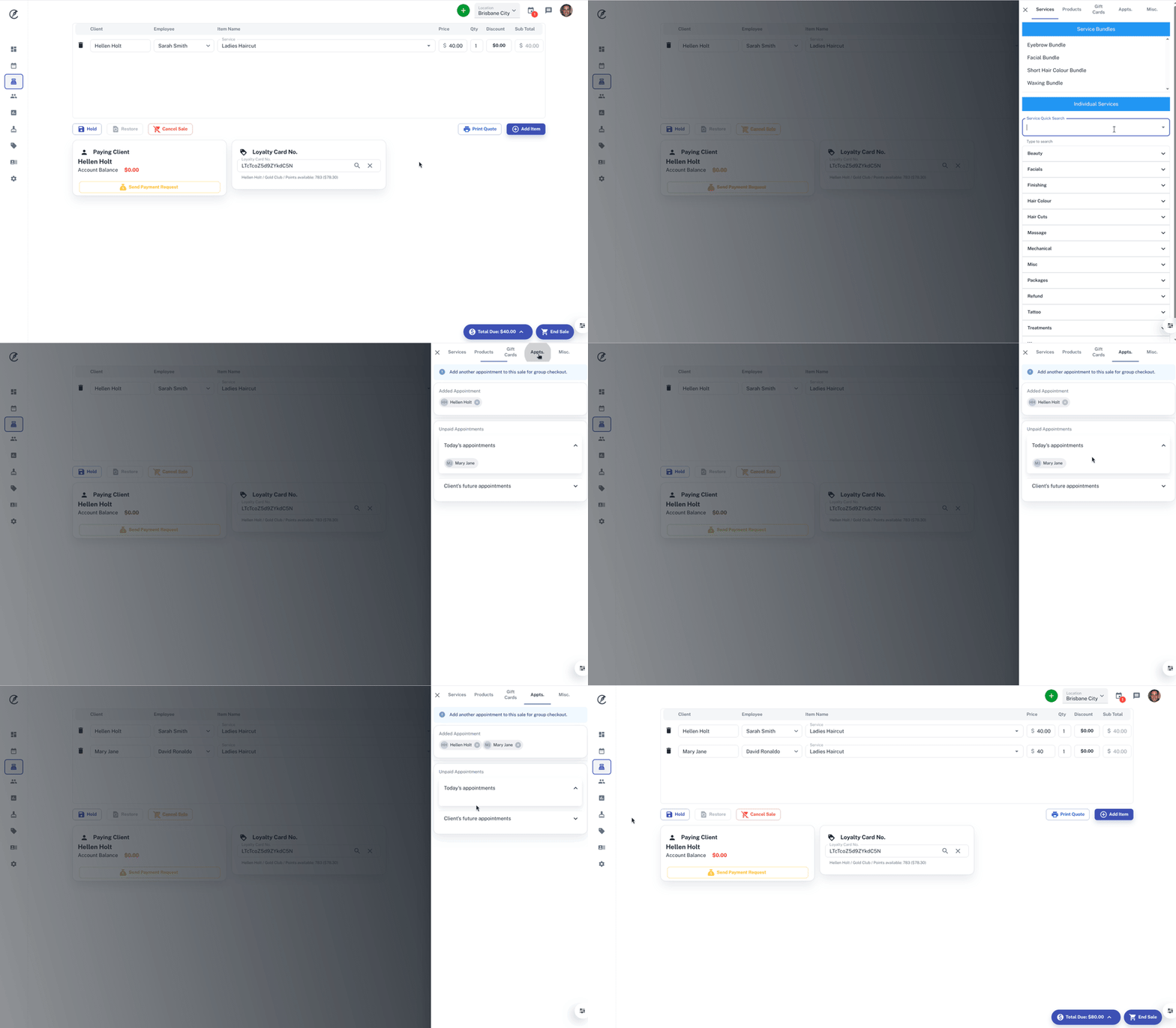
Learn how to perform a group checkout in Client Diary by combining 2 or more appointments at the same time through the POS menu and selecting unpaid appointments to finalize the transaction.
A group checkout is for when you want to check out 2 or more appointments at the same time. For example, for a family that comes in for haircuts with different employees and times you can group it together at the checkout in Client Diary.
To do this:
- From the Calendar, take your client’s appointment to the POSmenu
- Press the Add Item button
- Click on the Appointments Tab
- Select which appointment under Unpaid Appointments to group it with your current one
- Click on End Saleto finalise the transaction