On this page
article
How to Edit an Appointment
Learn how to edit appointments in your calendar, including changing date and time, editing client details, adding notes, services, and reordering services, with easy step-by-step instructions.
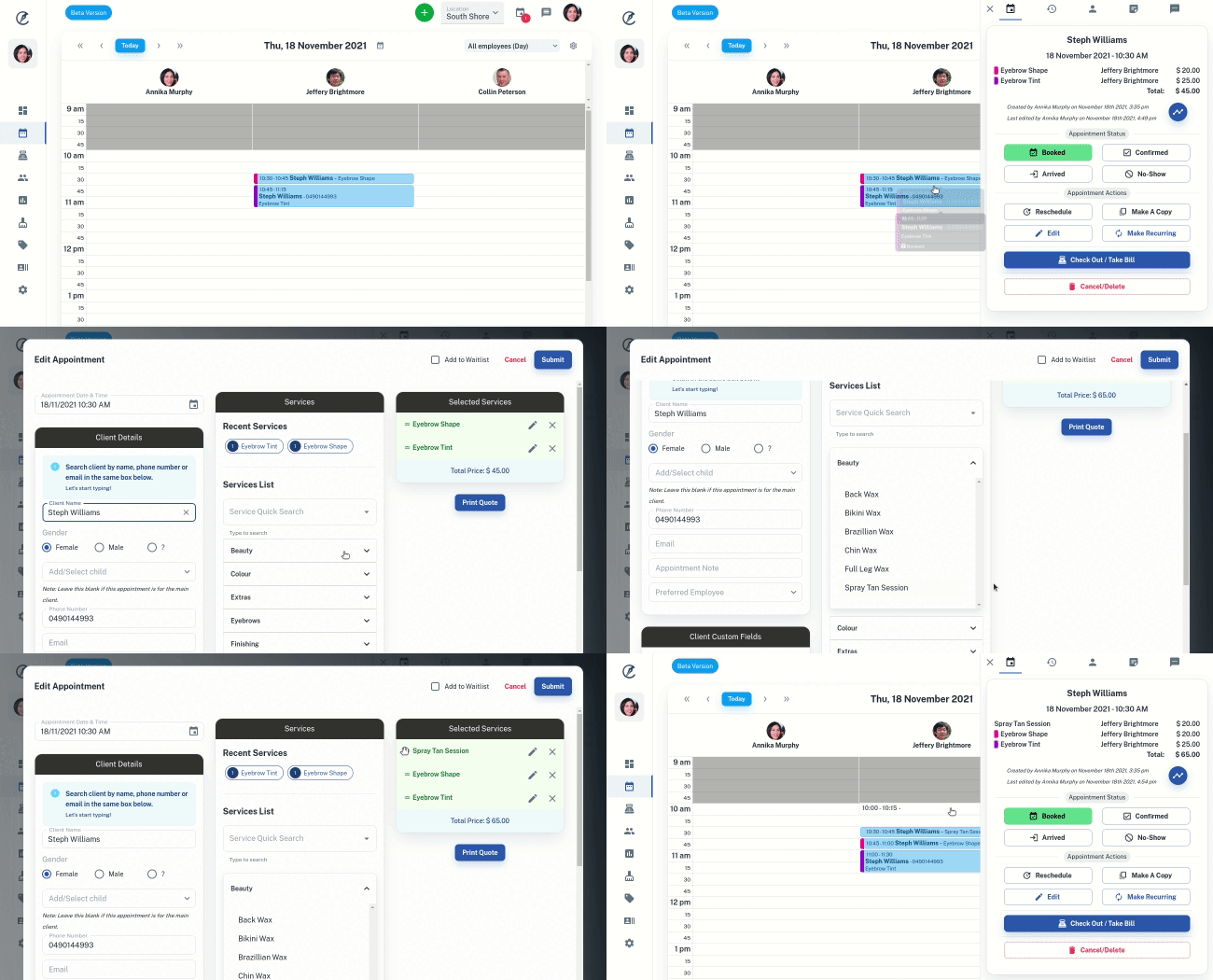
- Open Calendar to the appropriate date
- Selectthe Appointment in the calendar. This opens a window to the side
- Press the Edit button. This will open the edit screen
What Can be Edited
- The appointment’s date and time can be changed by clicking on the Calendar icon
- The Client Details can be edited or added to
- You can add an Appointment Note. Click here for more information on How To Add Appointment Notes
- You can add more Services to the appointment
- The order of the Services can also be moved by clicking and dragging the selected Service listed under Selected Services
- To delete out Services in the appointment click on the X icon next to the Service listed under Selected Services
- Once you have edited the appointment, press the Submit button in the top right.