On this page
article
Client Deposits / Client Accounts – Taking the Client’s Deposit
Learn how to easily take deposits from clients in Client Diary via the Calendar or POS, allowing you to add credits to their accounts or take deposits directly.
Taking a deposit from a client is super easy in Client Diary. There are different ways to take a deposit / credit for a client’s account.
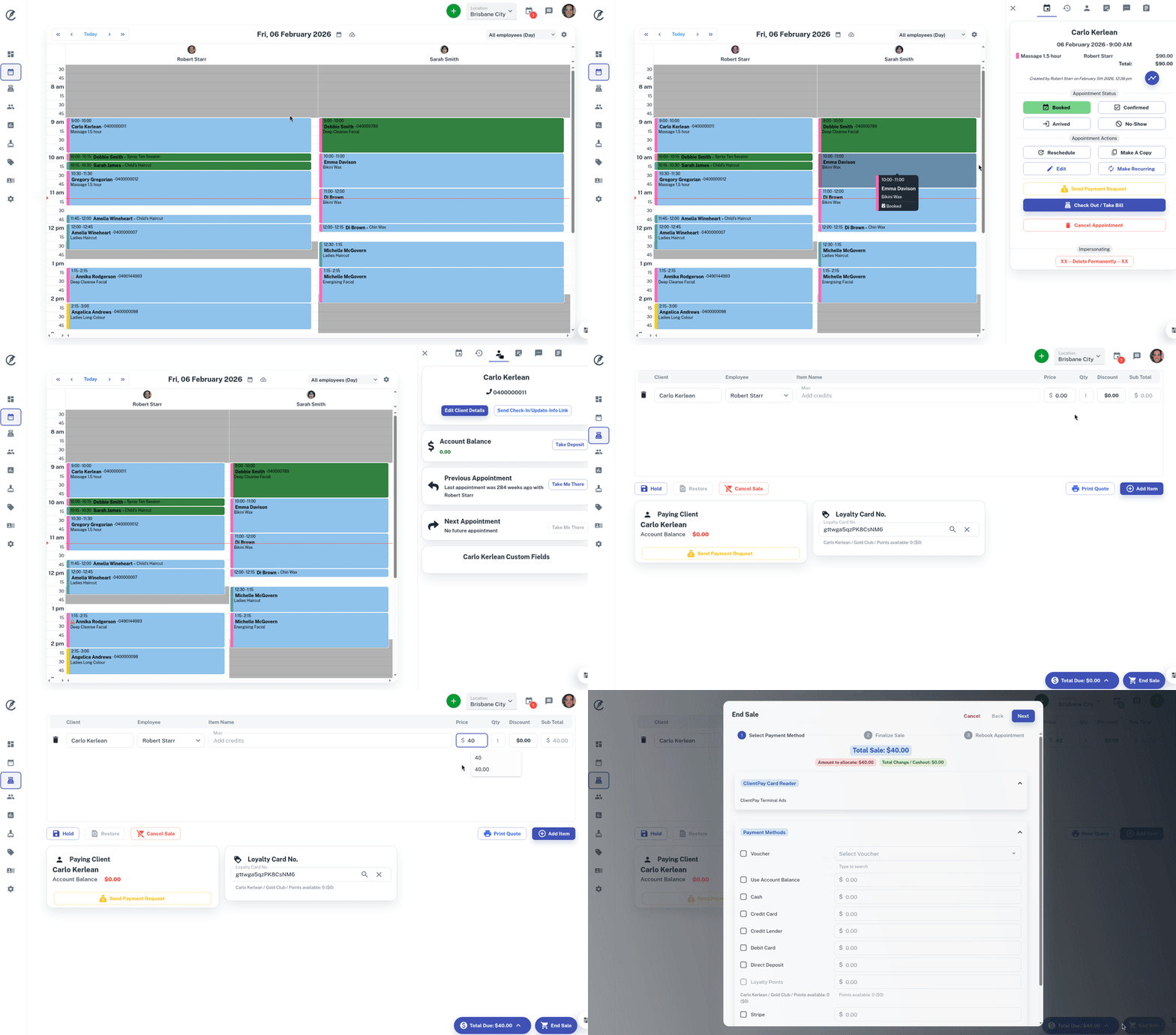
Via the Calendar
- From the Calendar menu
- Select the Client’s Appointment
- Click on the Client tab
- Press the Take Deposit button
- You will be taken to your Point of Sale
- Change the amount you’ll be depositing
- End the sale like normal
Via the POS
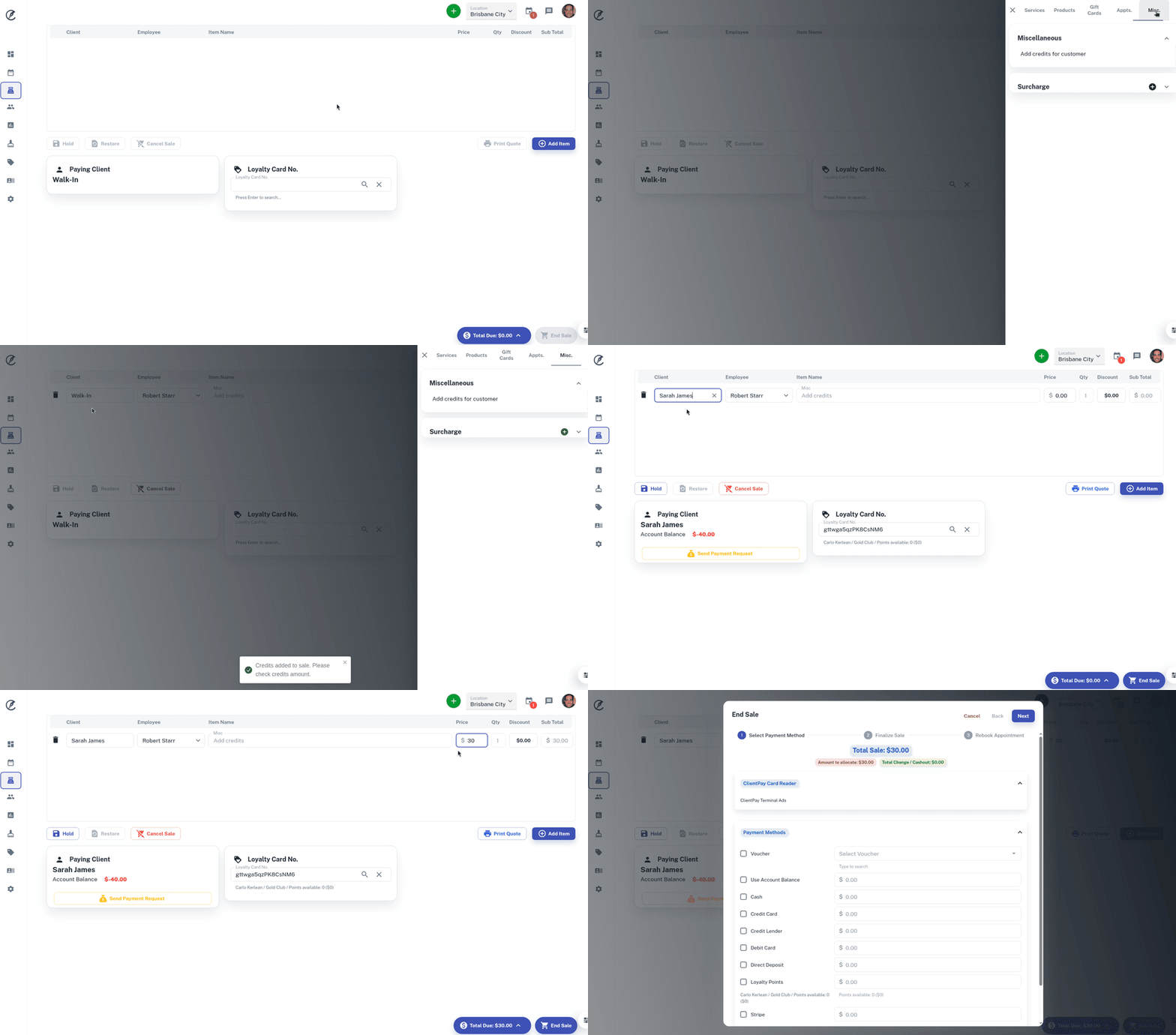
You can add to a client’s account / take a deposit directly from the POS if required.
- Go to the POS screen
- Press the Add Item button
- Select the Misc tab
- Press the “Add Credits for Customer” button
- Change the client from “Walk In” to the client who is making the deposit
- Change the amount you’ll be depositing and End Sale like normal