How To Add Custom Fields To Client Details
Learn how to enhance client details by adding custom fields such as Emergency Contact or Skin Type, with step-by-step instructions on accessing and utilizing various field options like Text Field, Check Box, Radio Button, and Auto-Complete Field.
Sometimes you want to add custom information to your client’s details. By default, we have name, address, phone, email and more. However, what if you want fields like Emergency Contact or Skin Type? If you’re a mechanic you may want car Make and Model. A pet grooming salon may want Dog Breed, Aggression Level, etc.
To do this
- Go to the Clientsmenu
- Search for the Client in the client search tool
- Press on Add/Edittab
- Click on the slider next to Add/Edit Custom Fieldsto access fields options
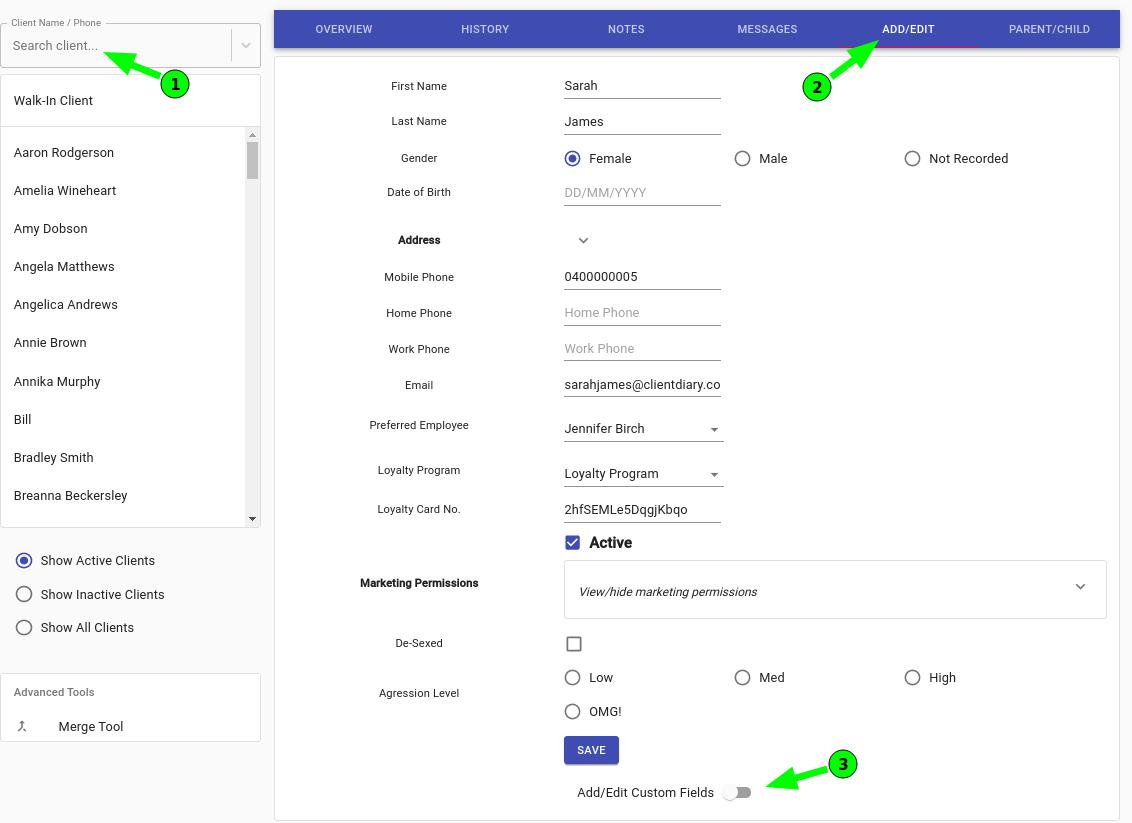
Turning this on you will see three different selection options

Add Custom Fields
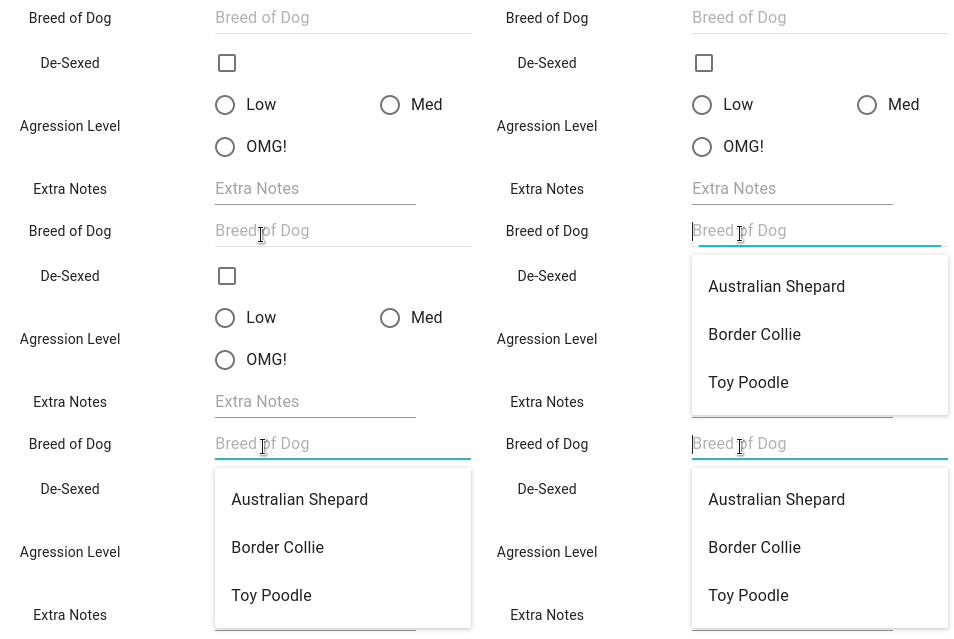
There are different types of fields you can add, when pressing on to the field it will prompt you to enter a name for the field in question.
**Text Field-**Is just when you want add notes to that field.

**Check Box-**When you want to add a tick box next to that field.

**Radio Button-**When you want to add multiple options to that Field

Auto- Complete Field- An auto complete field remembers what you enter so it’s there next time
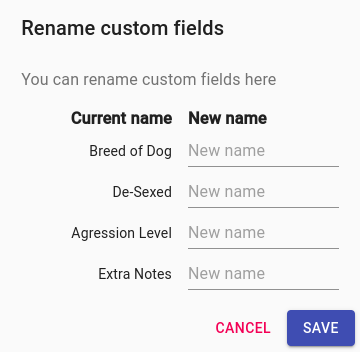
Rename Custom Fields
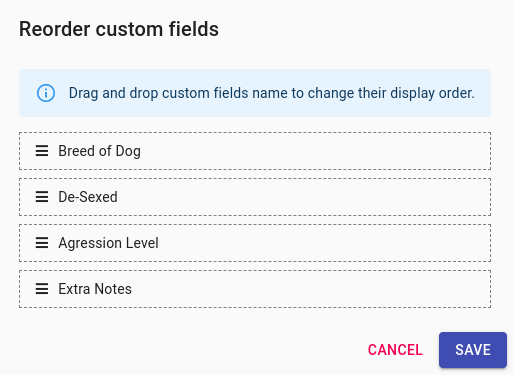
Reorder Custom Fields
Once you have done the changes you would like click on the Savebutton.