On this page
article
How to Set Employee Rosters
Learn how to efficiently set employee rosters, manage availability, and create split shifts and lunch breaks using simple steps in this guide.
Setting an employee’s roster helps organise who is available each day and also when they are available to be booked online.
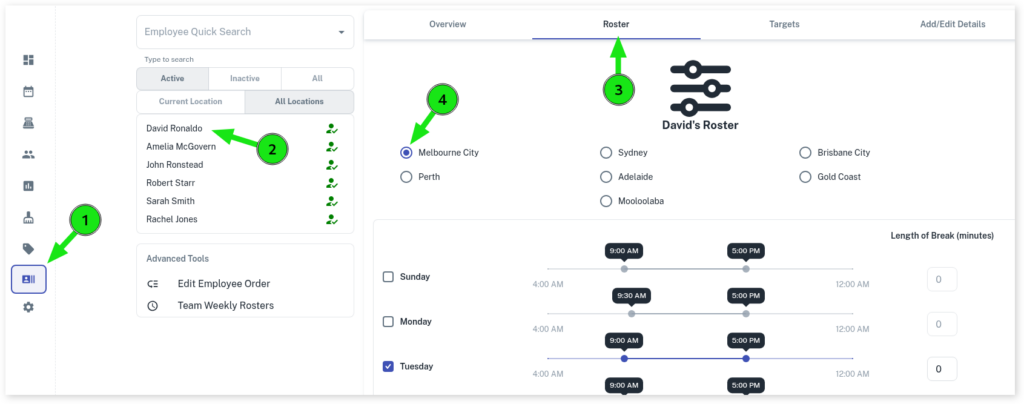
- Select the Employees menu
- Search your Employee’s Name
- Press the Roster tab
- Click the Site you’re editing their roster for (if you have more than 1 site/location)
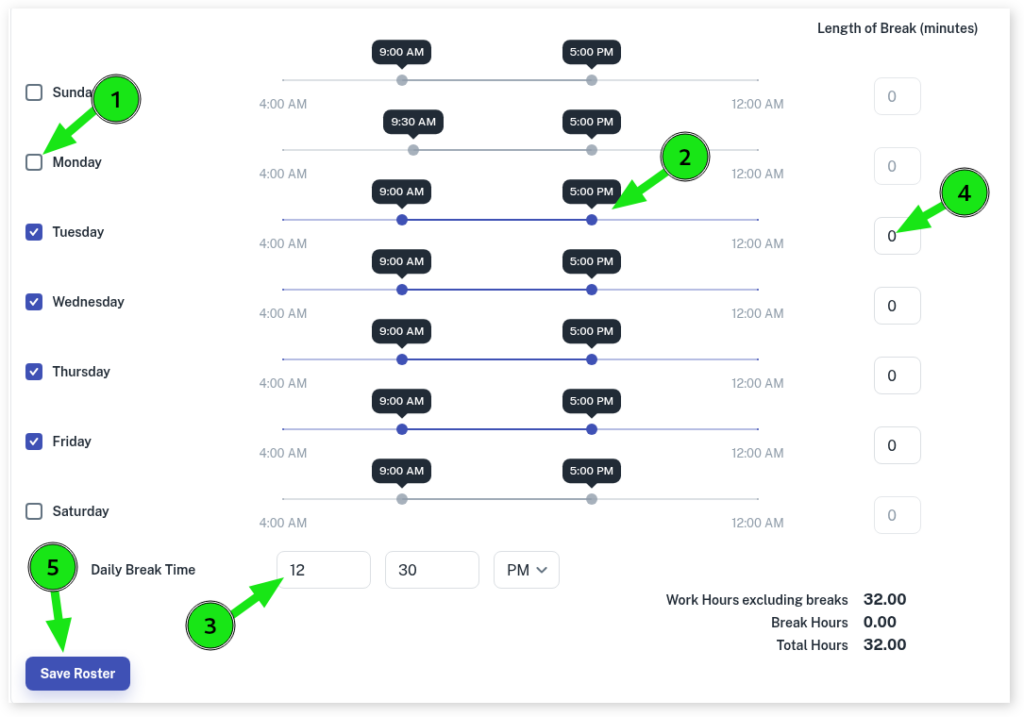
- Select which Days the team member is available
- Adjust the timing using the sliders
- Add the Daily Break Time if you wish
- Set the Length of Break (minutes) if you wish
- Press the Save Roster button
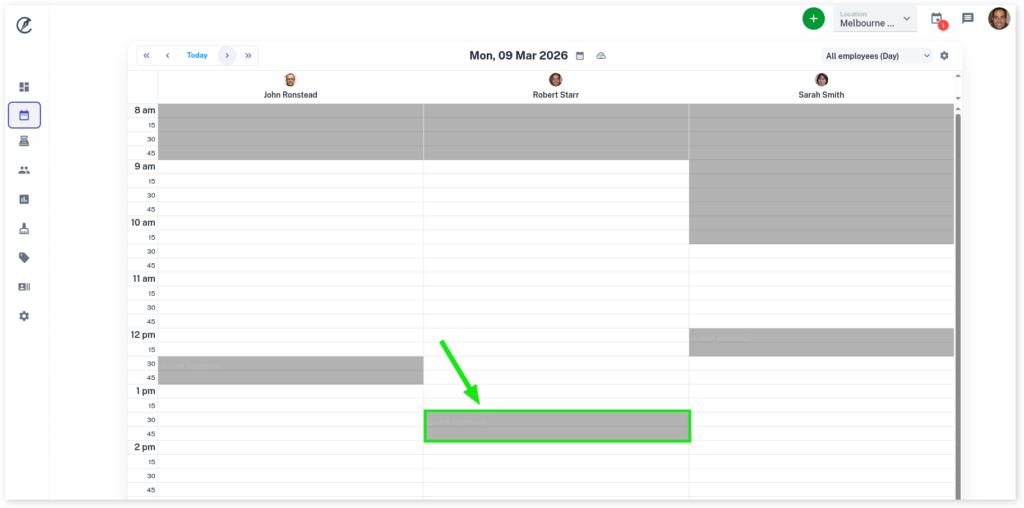
Lunch Break Split Shift
When adding a lunch break via the roster tool it will create split shifts for the day in the Calendar like displayed below.
Changing the Rostered Lunch Break Time
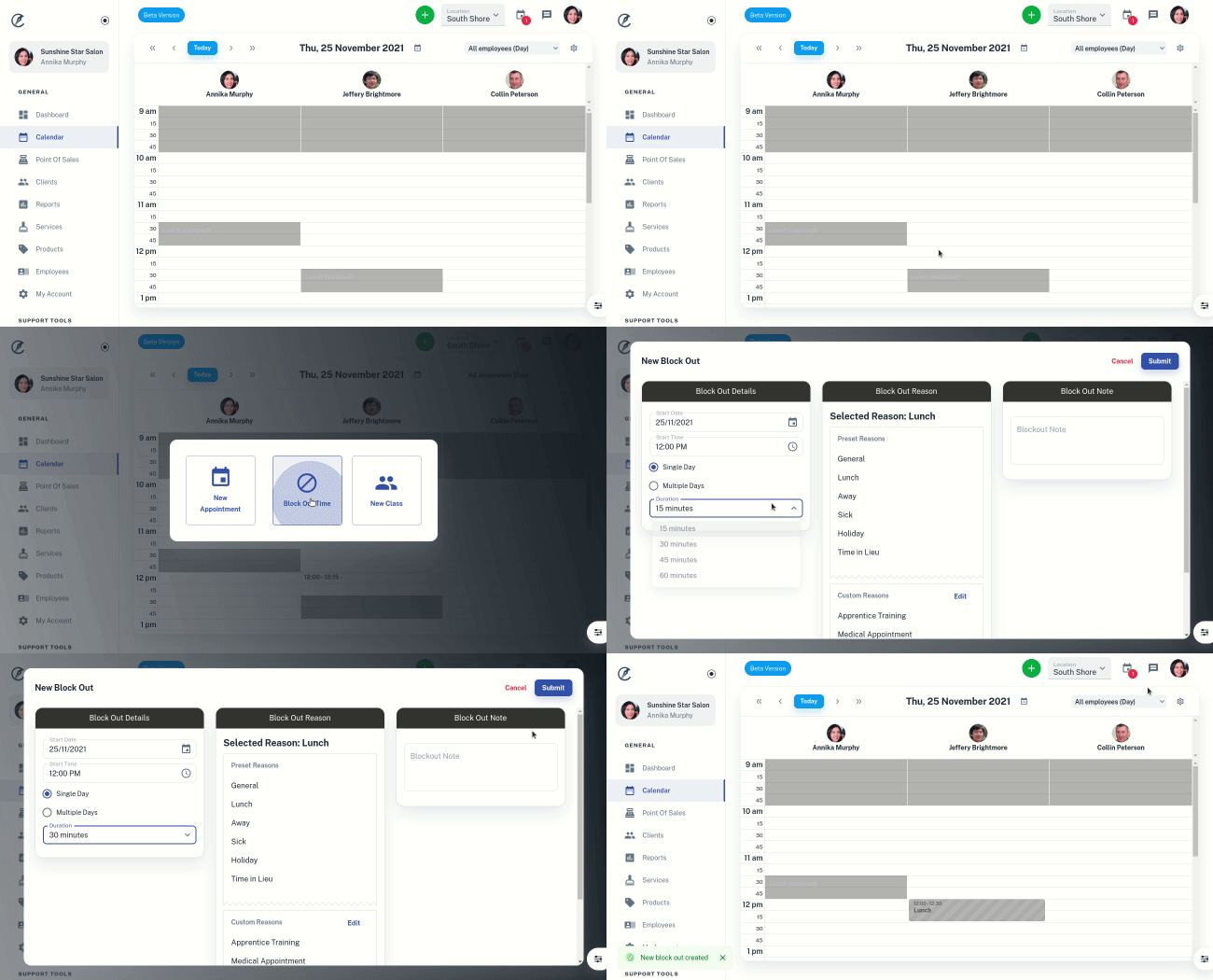
Creating a new lunch break in the Calendar will replace the break created by the roster. Step on creating lunch breaks can be found here. Below shows the rostered break disappearing when a new lunch break is created.