Setting up SMS Reminders for Multiple Sites/Locations
Learn how to set up SMS reminders for multiple sites/locations in Client Diary by following these steps: turn on SMS reminders, update site/location details, customize appointment reminder messages, and ensure all future appointments receive the new message by canceling scheduled SMS and saving changes.
Client Diary has powerful multi site tools including the ability to send appointment reminders with each site’s details. This document shows you how.
Steps to Ensure are Complete Before you Begin
- Before you begin, turn on your SMS Reminders normally as if you only have one location. Follow these instructions if you’ve not done this.
- Ensure you have your Trading Name, Address and Phone setup in the Sites/Locations tab in My Account.
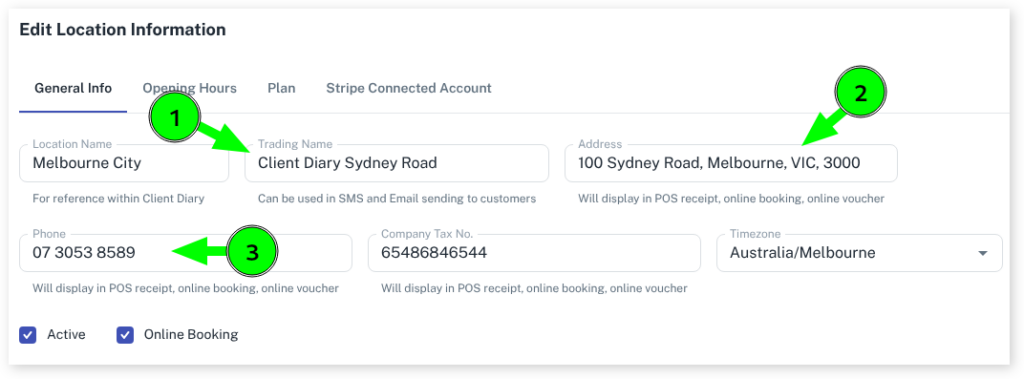
After that’s done, please continue:
- Go to the My Account menu
- Choose the Marketing tab
- Select Appointment Reminders
- Adjust the message from Preset SMS to Custom SMS
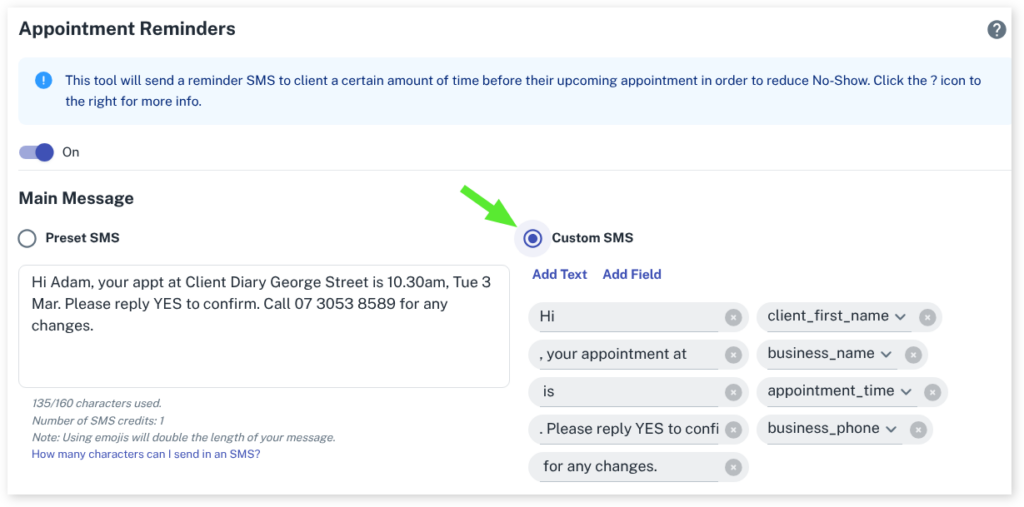
- Adjust the message by selecting the business_name field
- Change field to location_trading_name
- To ensure you have the correct phone number for each site also select the existing business_phone field
- Change it to location_phone
- Press the Save button

IMPORTANT NOTE: All future reminders that were queued will still have the old message. To ensure ALL future appointments receive the new message you need to remove the old messages.
- Press the Cancel Scheduled SMS button
- Then press Save Changes

After this step, all your future appointments will have the new message.