On this page
article
How to Add a New Payment Method
Learn how to easily add new payment methods like ZipPay or AfterPay in a few simple steps in Client Diary, but remember that only the business owner can make these changes and ensure you have the necessary permissions.
There may be a time you would like to add a new payment method, this might be adding in a new method like ZipPay, AfterPay, Square, etc.
This is how:
- Complete the sale like normal
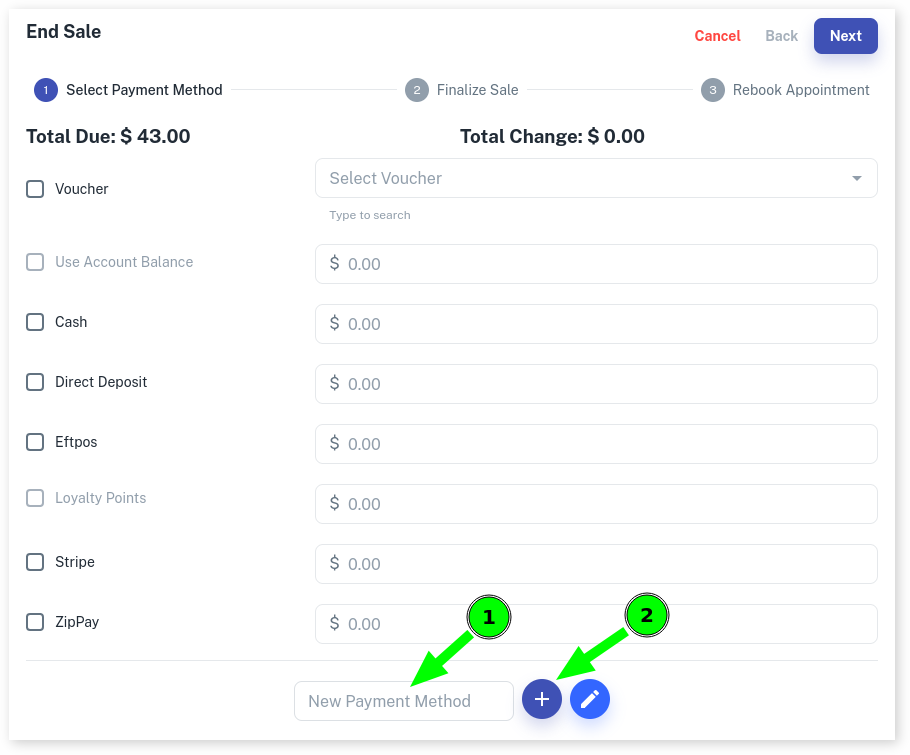
- After pressing the End Sale button, you are taken to the payment screen
- You will have some preset payment methods but you can add your own
- Note: You must have permission to access this. If you don’t, you’ll need to log in with a user that does
- Enter the name of the New Payment Method first
- Press the + Button
- You will see the new payment type in the list and it can instantly be used
**Note:**Only the owner of the business will be able to make these changes in Client Diary, please make sure the account you’re trying to use has the appropriate security settings. For more information on Security Settings, Click Here.
To deactivate any Payment Methods, click here: How to Edit Payment Methods