On this page
article
How to Add Custom POS Discount Reasons
Learn how to add custom POS discount reasons in Client Diary by creating and saving discount reasons for future use, making it easier to apply them during transactions.
Do you have a discount reason you wish to apply regularly? You may not want to type the details in each time, rather, select them from a list and have them auto applied.
When you create a discount reason in Client Diary, it will then stay in the system for use next time.
- Perform a normal transaction (link on how to do this)
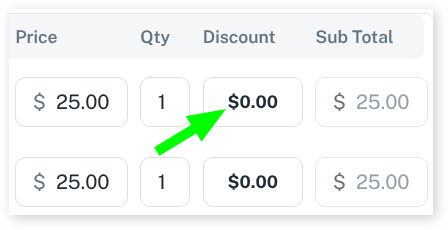
- In the POS screen, select the $0.00 discount area next to the item you wish to discount
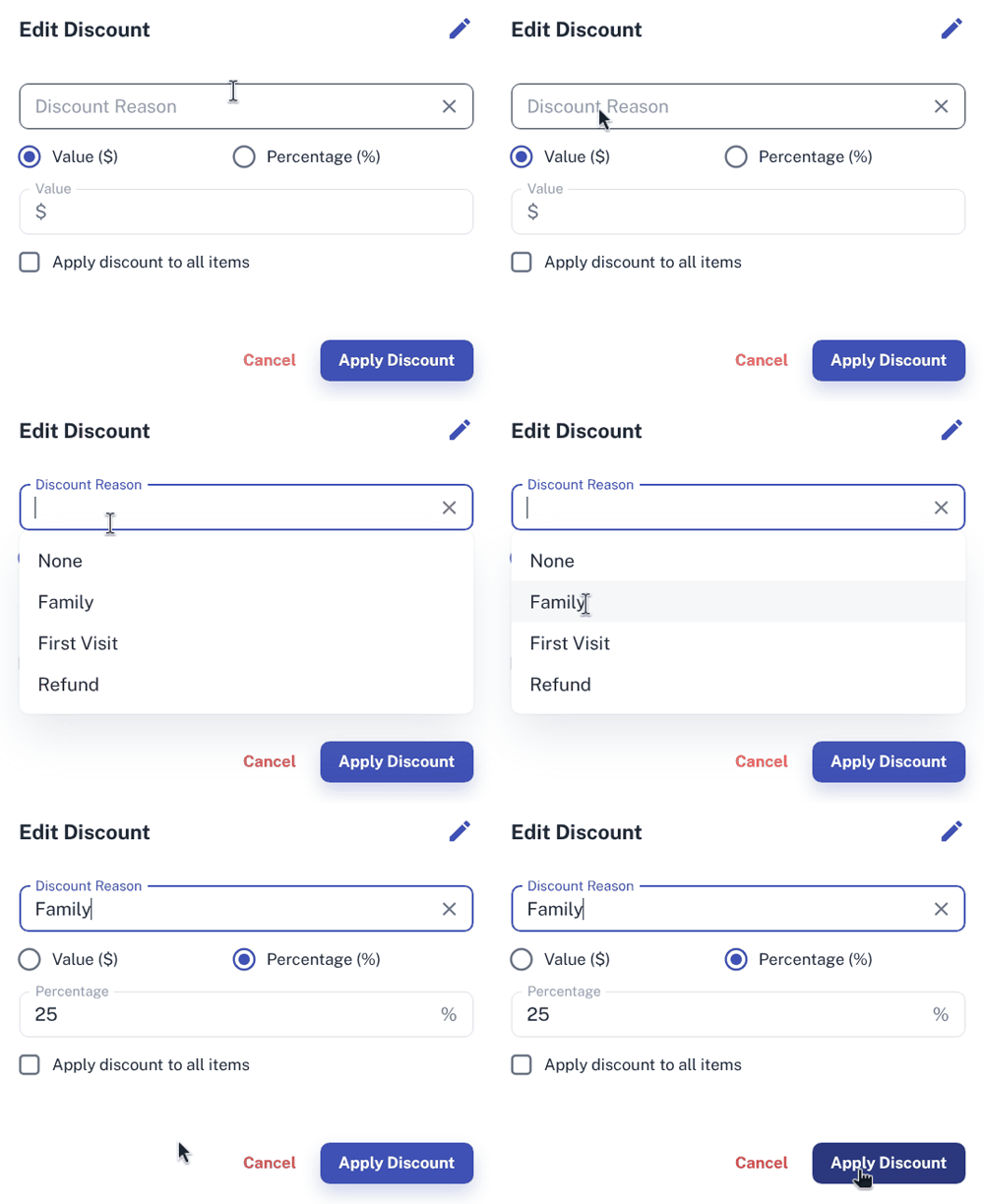
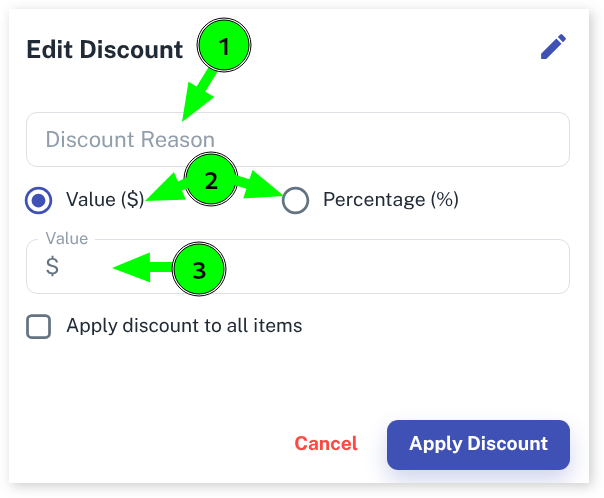
- Give the discount a name in the Discount Reason input area
- Choose Percentage (%) or Value ($)
- Enter the Percent or value
- Press the Apply Discount button
- Now, if you finalise the sale like normal, the next time you come to the POS screen and select the discount input you will see the saved discount in the list.