On this page
article
How to Assign an Existing Service to a Different Employee
Learn how to reassign an existing service to a different employee via the calendar or POS system, ensuring accurate reporting and streamlined management.
A employee may be needed elsewhere or you prefer a different employee to do a Service for training purposes and need to update an existing Service.
The appointment will need to be moved or checked out using a different employee to record these changes to make sure reports are accurate.
Via the Calendar
- Select the Calendar
- Choose the Appointment
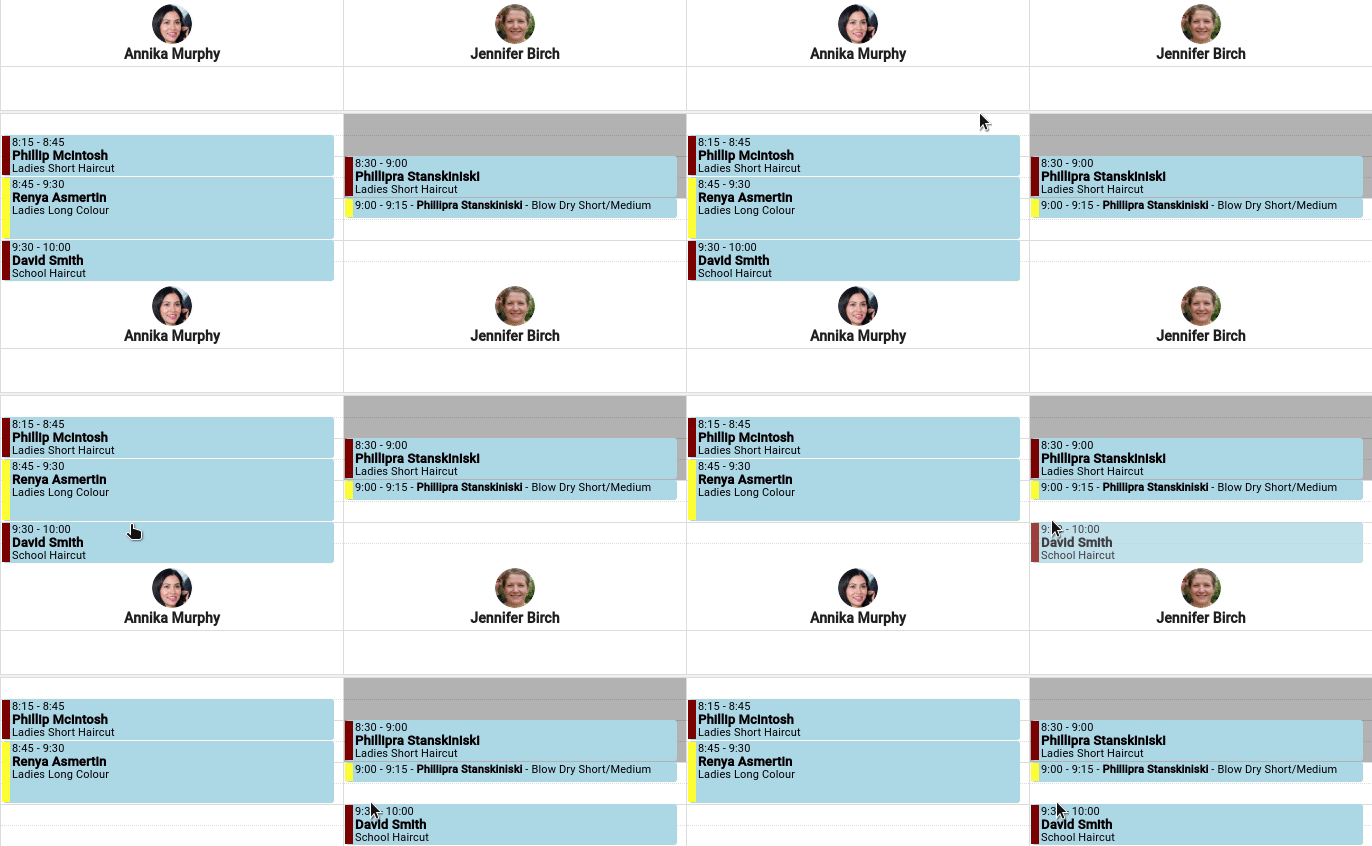
- Click and drag the service to the New Employee’s column that this service is now assigned to
- Optional: Check out the appointment
Note – When an appointment with multiple services has been assigned to different employees, only one SMS reminder will be sent for that appointment.
Via POS
- Select the Point Of Sales menu
- Add relevant Services and Products
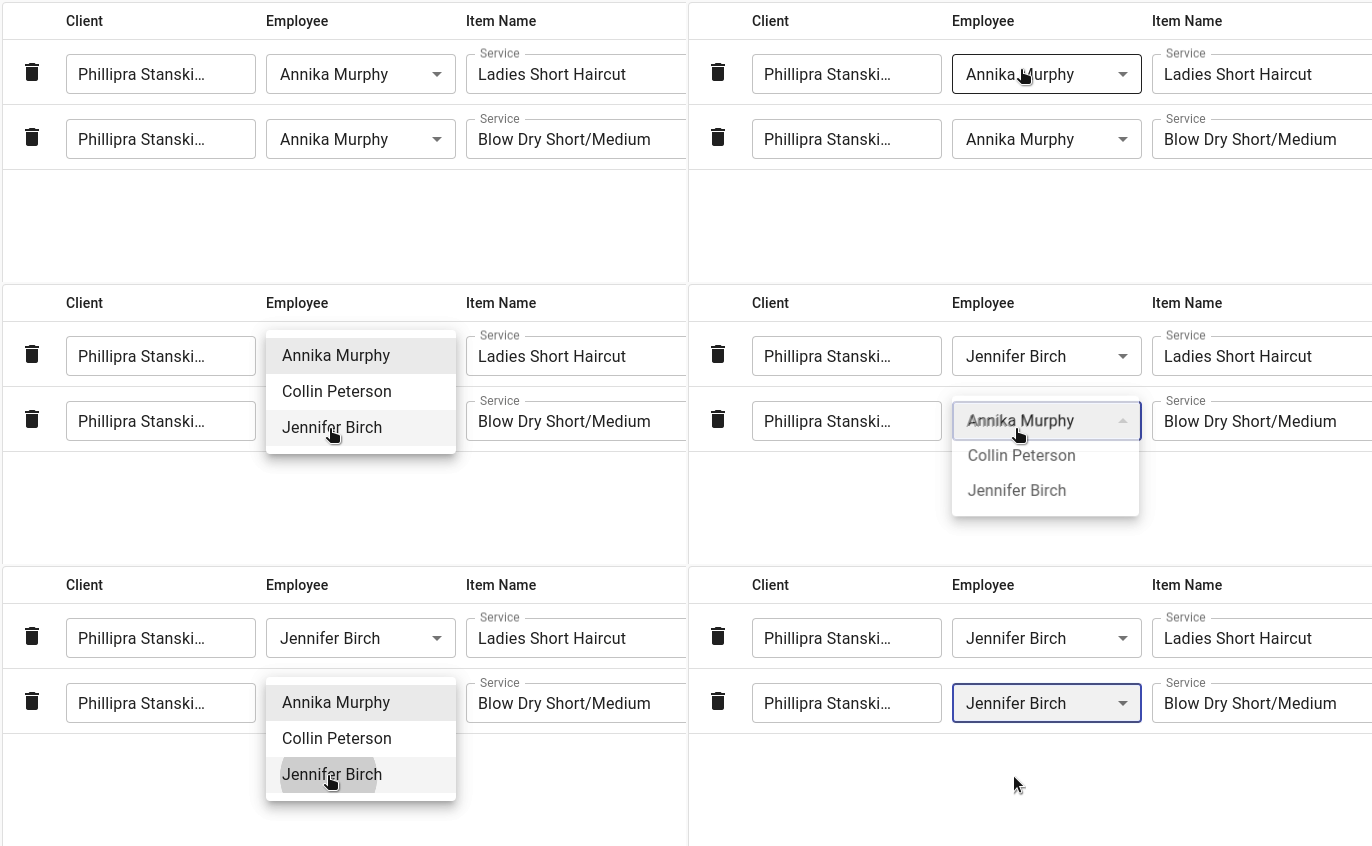
- Under Employee click the down drop menu button to choose which employee the Service is being assigned to
- Check out the appointment