How to do a Stock Take (Without Variants)
Learn how to conduct a stock take in Client Diary efficiently and accurately by following simple steps, ensuring your business inventory matches the system data, and print out the stock form for manual entry if needed.
Performing a stock take in Client Diary is fast and easy. It allows you to ensure the stock you have in your business exactly matches what’s inside Client Diary. That way when you place orders or run reports, the information Client Diary has is accurate.
To do a stock take in Client Diary:
- Select the Products menu
- Press the Stock Toolstab
- Click on Stocktake on the left menu
- Choose which business location you wish to do a stock take on
- Click on Start Stock takebutton.
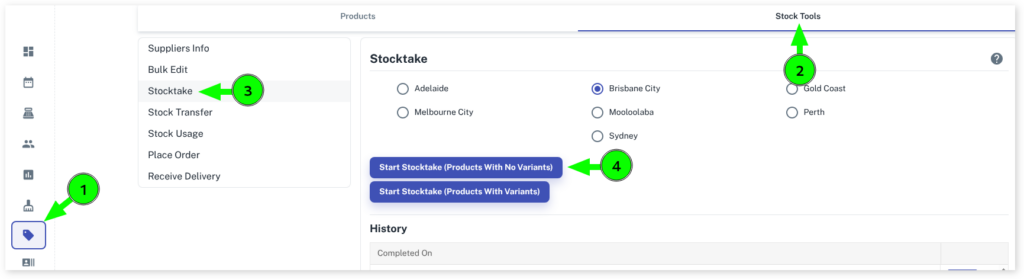
Then the Stocktake Form will appear:
- Untick the tick box for any products you do not want included in the stock take
- Click on the Nextbutton
- Now it will have in a list Brand Name, Line Name, Product Name, Usage/Retail, Expected Stock Amount and Real Stock Amount
- In the Real Stock Amountjust click on it and enter the real stock valve for that product
- Click on Next

It will then summarise what you have entered in the stock take and list any differences in the stock take.
Total of differences in amount andTotal of differences in value
Click on Finishto finalise the stock take.
NOTE: the Expected Stock Amountis the what the system thinks you should have on hand based on what you’ve sold recently or what you’ve used in the Stock Usage tool. You do need to have your “level set” value applied to your Products for the stock take to work properly. On how to do this just Click Here
How to Print Out the Stock Take Form
Although designed to enter your stock via an iPad or other tablet, you can still print the stock form to enter via pen/paper if you wish.
- In step 2, select the Export PDF button
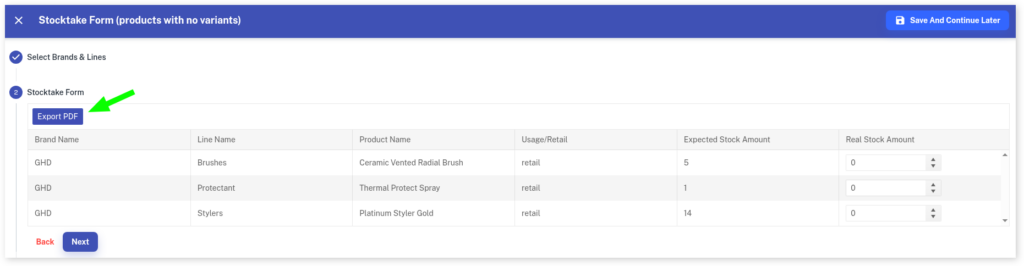
Once you have entered the real stock amount manually, you will then need to enter the amounts into the Stocktake Form as above.
How to View Previous Stock Takes
- Select Productson the left menu
- Click on the Stock Tools tab
- Click on Stocktakeon the left menu
- Under Historyclick on the Viewbutton
