On this page
article
How to Set Up Product Variants
Learn how to set up product variants in Client Diary by selecting the product, adding variants, generating combinations, setting prices and availability, and saving the changes.
When using the Products page in Client Diary, it is possible to set Product variants without the need to make a brand now Product.
- Select the Products menu
- Choose the Product you would like to set up Variants for
- Click the Advanced Settings tab
- Select Add Variant
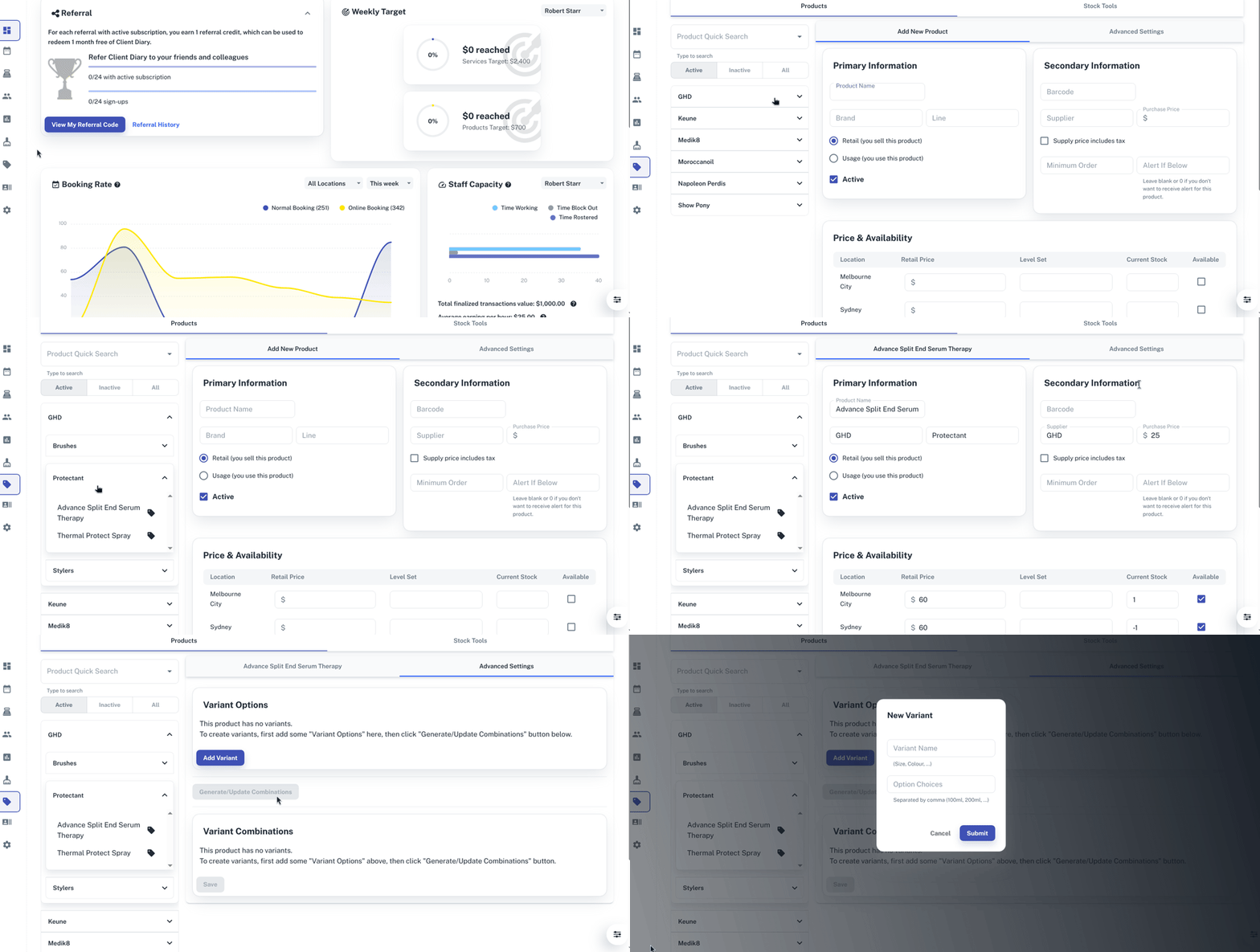
- Enter the Name of the Variant (example size, colour, flavour)
- Enter different available options, separated by a comma (100ml, 250ml, 500ml or red, blue, green)
- Press Submit

- Select Generate/Update Combinations
- Click Active if this Product line is active for the location
- (Optional) Enter the Barcode into the appropriate field. This could be done by left-clicking in the space and by using a product scanner and scanning the barcode to enter it
- Press Save

- Under the Product’s Price & Availability select the drop-down option for the Location
- For each Product variant enter Purchase Price, Retail Price, Level Set
- (Optional) Enter Current Stock, these levels may be updated using a stock take
- Press Save

For information on completing a Stocktake with Product variants please follow this link.