On this page
article
Adding and Editing Suppliers
Easily manage and update suppliers in Client Diary to ensure accurate stock orders by following simple steps to add or edit supplier details, such as business name, contact information, and sales representative details.
Client Diary allows you to easily set up your suppliers so when you place stock orders, the correct products are ordered from the correct suppliers.
- Select the Products menu
- Press the Stock Tools ab
- Click on Suppliers Info
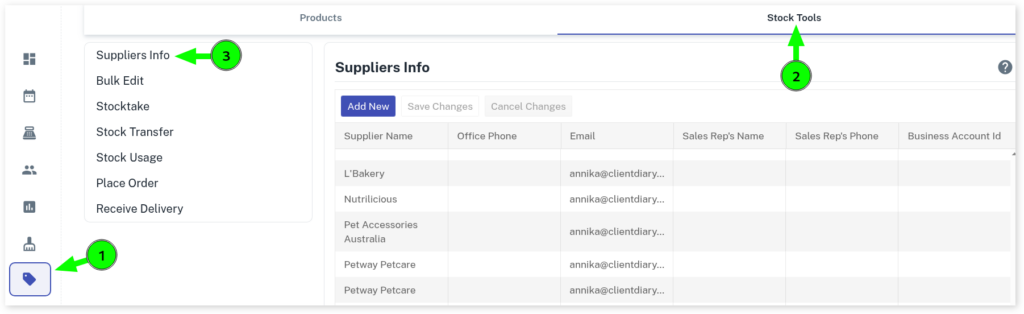
- To add a new supplier press the Add New button and enter their details, then press the Save Changes button
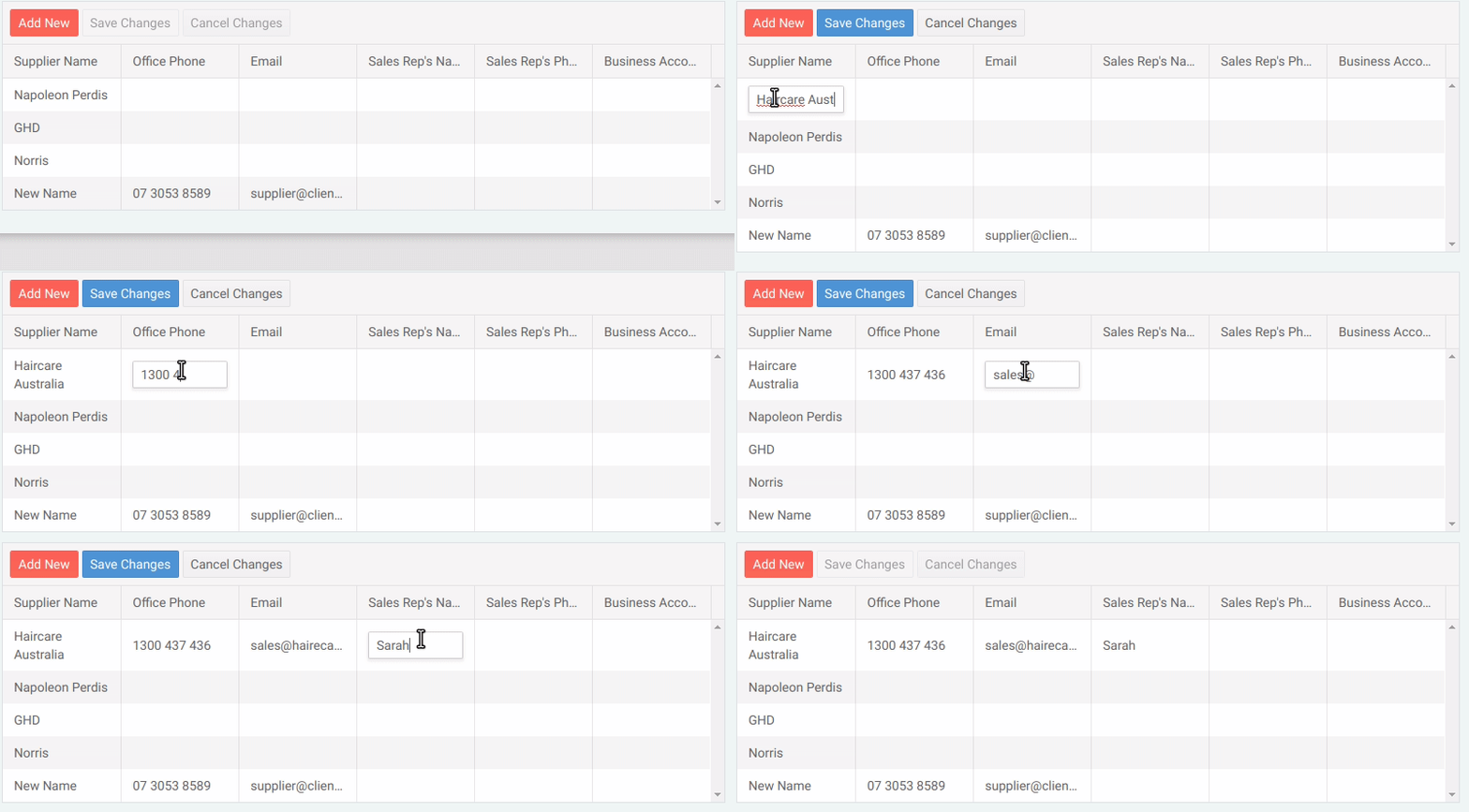
- To edit a supplier, simply click in the field you wish to change, make the changes and press the Save Changes button

The following info can be added:
- Supplier Name : The business name of the supplier
- Office Phone : The head office’s phone number
- Email : The email address the supplier accepts orders from
- Sales Rep’s Name : The name of your rep
- Sales Rep’s Phone Number : The mobile number of your rep
- Business Account Number : The account Number / ID the supplier has assigned to you. This is so they can match your business to their system easily when placing an order.