On this page
article
How to Copy a Class to Another Location
Learn how to copy a class to another location by selecting the Services menu, pressing the Classes tab, choosing the Site/Location, and using the Copy icon to make the class available at multiple sites.
If you have more than one site / location you may want certain Classes to be available in multiple locations, or even Classes available at all locations.
First, ensure you have created a Class. A document on how to do that is here.
After that is done:
- Select the Services menu
- Press the Classes tab
- Choose your Site/Location
- Select the Copy icon in the top right of the Class you wish to copy to another site.

- Click on or place a tick next to each site you wish to copy the Class to
- Press the Copy button
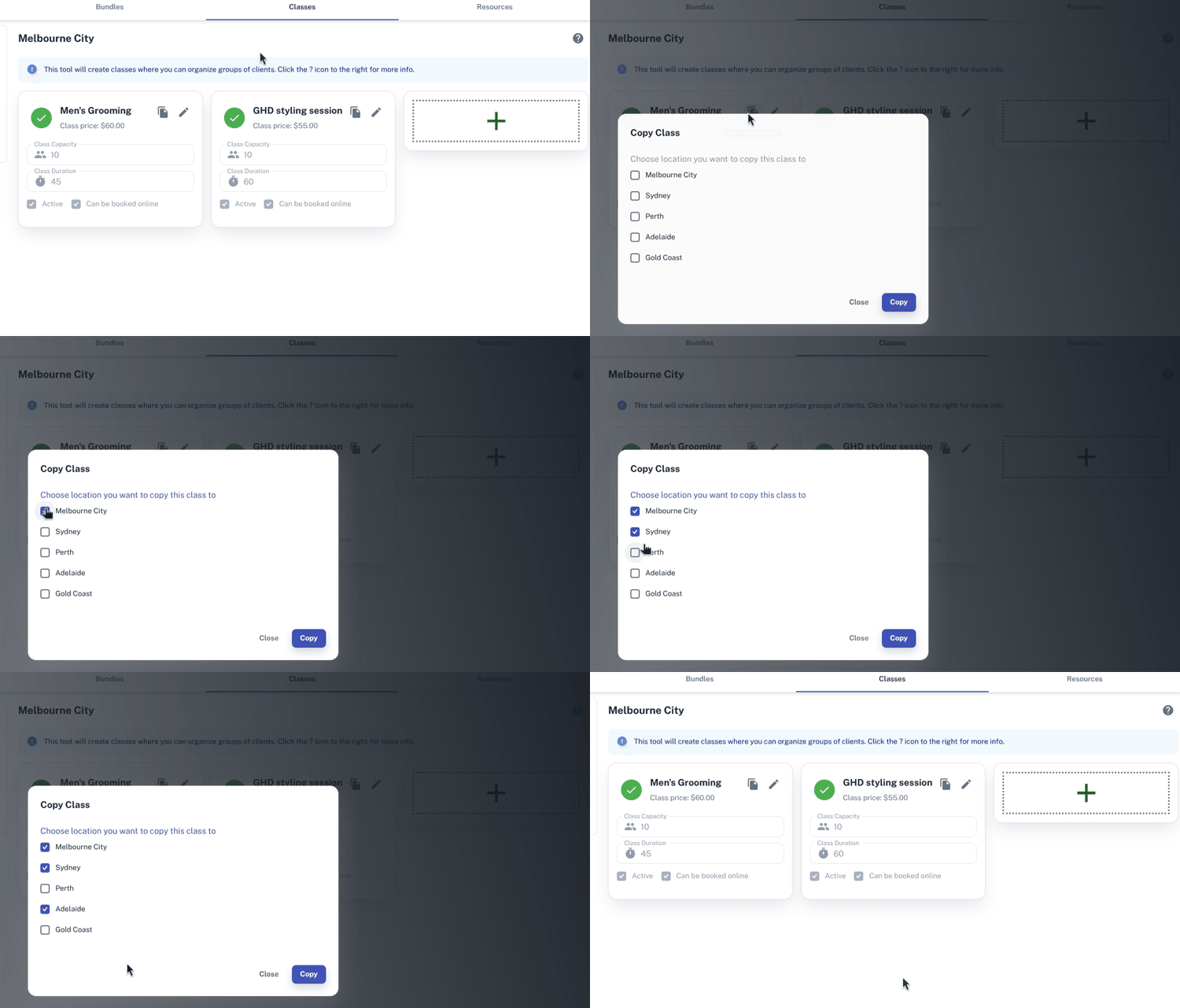
Your Class is now available in the other site/s and can be booked there.
For further information on classes, Click Here.